
Quick links to procedures on this page:
• |
• |
• |
• |
• |
• |
You can change the view of a drawing by zooming in to get a closer look or by zooming out to see more of the drawing. You can experiment with a variety of zoom options to determine the amount of detail you want.
Panning and scrolling are two additional ways to view specific areas of a drawing. When you work at high magnification levels or with large drawings, you may not be able to see the whole drawing. Panning and scrolling let you move the page around in the drawing window to view previously hidden areas.
You can use the Pan tool to pan around a large image and view particular areas.
You can zoom in and out while you are panning, and you can pan while you are zooming. In this way, you can avoid having to alternate between the two tools.
You can also use the Quick Pan mode to switch from any active tool to the Pan tool. This feature lets you pan without having to change tools.
If you use a mouse wheel, the wheel zooms in and zooms out by default. You can also use the mouse wheel to scroll.
By specifying default zooming and panning settings, you can zoom in quickly to detailed parts of a drawing and zoom out to the larger context.
| To zoom |  |
1. |
In the toolbox, click the Zoom tool
 . .
|
2. |
On the property bar, click one of the following:
|
• |
Zoom in

|
• |
Zoom out

|
• |
Zoom to selected

|
• |
Zoom to all objects

|
• |
Zoom to page

|
• |
Zoom to page width

|
• |
Zoom to page height

|
 |
The Zoom to selected button is available only if one or more objects are
selected before you click the Zoom tool.
|
 |
When you are not editing text, you can also access the Zoom tool by pressing
the Z key.
|
Using the Zoom tool, you can also zoom in by clicking anywhere in the
drawing window or dragging to select a specific area to magnify. To zoom out,
right-click in the drawing window.
|
You can also zoom in by using the Pan tool
 and double-clicking in the
drawing window. To zoom out, right-click in the drawing window. and double-clicking in the
drawing window. To zoom out, right-click in the drawing window.
|
| To pan in the drawing window | |
1. |
In the toolbox, click the Pan tool
.
|
2. |
Drag in the drawing window until the area you want to view appears.
|
|
When you are not editing text, you can also access the Pan tool by pressing the
H key.
|
To pan in the drawing window while zoomed in on the drawing, click the
Navigator button
 in the lower-right corner of the drawing window.
Alternatively, you can press the N key and drag the crosshair pointer around
in the Navigator pop-up window. in the lower-right corner of the drawing window.
Alternatively, you can press the N key and drag the crosshair pointer around
in the Navigator pop-up window.
|
You can quickly center the page in the drawing window by double-clicking the
Pan tool in the toolbox.
|
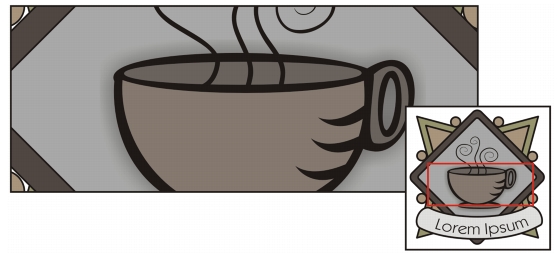
Using the Navigator, you can display any part of a drawing without having to zoom out.
| To switch to the Quick Pan mode | |
1. |
Click any selection, drawing, or shaping tool, and start using it.
|
2. |
Hold down the middle mouse button or wheel, and drag in the drawing window.
|
| To scroll by using a mouse wheel | |
• |
Do one of the following:
|
• |
To scroll vertically, press Alt while you move the wheel.
|
• |
To scroll horizontally, press Ctrl while you move the wheel.
|
| To specify default zoom settings | |
1. |
Click Tools  Options. Options.
|
2. |
In the list of categories, double-click Workspace, double-click Toolbox, and click
Zoom, Pan tool.
|
3. |
To specify the action of the Zoom or Pan tool when you right-click in the drawing
window, enable one of the following options:
|
• |
Zoom out — zooms out by a factor of 2
|
• |
Context menu — displays a menu of commands that let you zoom to a specific
level
|
4. |
To specify how the page appears when the zoom is set to 100%, enable or disable
the Zoom relative to 1:1 check box.
|
• |
When the option is enabled, a 100% zoom displays real-world dimensions.
|
• |
When the option is disabled, a 100% zoom displays the full page, regardless of
real-world dimensions.
|
5. |
To specify how the page appears when you zoom in and out using the mouse wheel,
enable or disable the Center mouse when zooming with the mouse wheel check
box.
|
• |
When the option is enabled, the area where the mouse pointer is located moves
to the center of the screen as you zoom in and out using the mouse wheel.
|
• |
When the option is disabled, the area where the mouse pointer is located stays in
the same position as you zoom in and out using the mouse wheel.
|
|
You can click Calibrate rulers to ensure that one inch on your screen equals
one inch of real-world distance. For more information, see Calibrating the
rulers.
|
| To establish default setting for the mouse wheel | |
1. |
Click Tools Options.
|
2. |
In the list of categories, double-click Workspace, and click Display.
|
3. |
To specify the default action of the mouse wheel, choose Zoom or Scroll from the
Default action for mouse wheel list box.
|

|
Copyright 2012 Corel Corporation. All rights reserved.