Quick links to procedures on this page:
• |
• |
• |
• |
• |
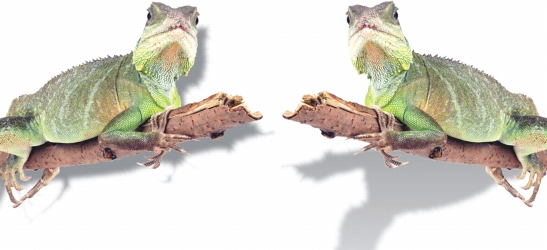
There are three types of drop shadows: glow, flat, and perspective. Glow drop shadows silhouette objects and are centered horizontally and vertically; they simulate a light source shining straight onto an object. Flat drop shadows simulate the effect of directional light, so shadows are offset. Perspective drop shadows create three-dimensional depth. You can add a drop shadow to any object, including text.
The object on the left has a flat drop shadow, while the object on the right has a perspective drop shadow.
You can create and adjust drop shadows in the image window. You can also change the color, position, direction, and transparency of a drop shadow directly in the image window.
You can also apply preset drop shadows. When you apply a preset, you can modify it to create a custom drop shadow. For example, you can change its direction and distance from an object, its color, and its opacity. By default, the edges of drop shadows feature squared feathering. You can choose another feathering type, such as a Gaussian blur which creates a realistic-looking drop shadow. You can also copy a custom drop shadow or save it as a preset.
When you change the shape or transparency of an object that has a drop shadow, the drop shadow automatically also changes.
You can remove a drop shadow at any time.
| To add a drop shadow |  |
1 |
In the toolbox, click the Drop shadow tool  . .
|
2 |
Select an object.
|
If you want to create a flat drop shadow, drag from the center of the object. |
If you want to create a perspective drop shadow, drag from the edge of an object. |
| To add a glow drop shadow | |
1 |
In the toolbox, click the Drop shadow tool .
|
2 |
Select an object.
|
3 |
On the property bar, choose one of the following presets from the Preset list box:
|
• |
Large glow
|
• |
Medium glow
|
• |
Small glow
|
| To add a preset or custom drop shadow | |
1 |
In the toolbox, click the Drop shadow tool .
|
2 |
Select an object.
|
3 |
Choose a preset from the Preset list box on the property bar.
|
If you modify the preset by changing any of the values on property bar, the preset name changes to Custom in the Preset list box. |
4 |
Open the Shadow color picker on the property bar, and click a color.
|
5 |
On the property bar, type values in any of the following boxes:
|
• |
Shadow direction — lets you specify the angle of the shadow in relation to the
object
|
• |
Shadow offset — lets you specify the distance of the shadow from the object’s
point of origin
|
• |
Shadow fade — lets you specify the percentage by which a perspective drop
shadow fades as it moves away from the object
|
• |
Shadow stretch — lets you specify the length of a perspective shadow
|
• |
Shadow transparency — lets you specify the transparency of the shadow
|
• |
Shadow feathering — lets you specify the number of pixels on the edge of the
shadow that are feathered to create a soft edge. By default, squared feathering is
used, but you can choose another type from the Feather edge picker  on the
property bar. For example, if you want to create a realistic drop shadow, choose
the Gaussian blur. You can also specify a direction for the feathered pixels from
the Feathering direction picker on the
property bar. For example, if you want to create a realistic drop shadow, choose
the Gaussian blur. You can also specify a direction for the feathered pixels from
the Feathering direction picker  . .
|
 |
| To copy a drop shadow | |
1 |
Select the object to which you want to apply a drop shadow.
|
2 |
In the toolbox, click the Drop shadow tool .
|
3 |
Click the Copy shadow properties button  on the property bar. on the property bar.
|
4 |
Click the object that has the drop shadow properties you want to copy.
|
| To remove a drop shadow | |
1 |
In the toolbox, click the Drop shadow tool .
|
2 |
Select an object with a drop shadow.
|
3 |
Press Delete.
|
|
You can also remove a drop shadow by choosing None from the Preset list box
on the property bar.
|

|
Copyright 2010 Corel Corporation. All rights reserved.
 on the property bar, and type a name for the drop shadow in the Save preset as box.