Quick links to procedures on this page:
• |
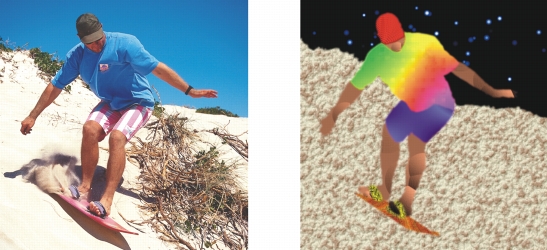
Texture fills are three-dimensional patterns. You can use preset texture fills, such as water, minerals, and clouds, or you can edit a preset to create a custom texture fill. You cannot import files to use as texture fills.
When you edit a texture fill, you can modify parameters, such as the softness, density, brightness, and colors. Parameters vary for each texture. Once you have edited a texture fill, you can save it as a custom texture fill.
You can modify the attributes of a texture fill to change its appearance.
| To apply a texture fill |  |
1 |
In the toolbox, click the Fill tool  . .
|
If you want to fill an object, you must select it by using the Object pick tool  before applying the fill. before applying the fill. |
2 |
Click the Texture fill button  on the property bar. on the property bar.
|
3 |
Click the Edit fill button  on the property bar. on the property bar.
|
4 |
In the Texture fill dialog box, choose a texture library from the Texture library
list box.
|
5 |
Choose a texture from the Texture list.
|
6 |
Click OK.
|
7 |
Click where you want to apply the fill in the image.
|
 |
Texture fills are scaled to the image or image area to which you apply them.
|
You cannot tile texture fills.
|
 |
To apply a fill to a text object, you can first render the text as an editable area
by selecting the text object with the Text tool  and clicking the Create text
mask button and clicking the Create text
mask button  on the property bar. This produces a text-shaped editable area
to which you can apply fills. on the property bar. This produces a text-shaped editable area
to which you can apply fills.
|

|
Copyright 2010 Corel Corporation. All rights reserved.
 , and type a name in the Texture name box in the Save texture