Quick links to procedures on this page:
• |
You can copy pixels from one image area to another in order to cover damaged or unwanted elements in an image. For example, you can fix a tear or remove a person from an image by applying cloned pixels over the area you want to remove. You can also clone image elements you like and apply them to another image area or a second image. If you clone an object, the newly cloned areas are added to the active object. You can also create abstract images, based on pixels sampled from the original image.
When you clone, two brushes appear in the image window: a source point brush and a clone brush that applies the copied pixels from the source point. A crosshair pointer is displayed in the source point brush to distinguish it from the clone brush. The source point brush moves relative to the clone brush as you drag across the image.
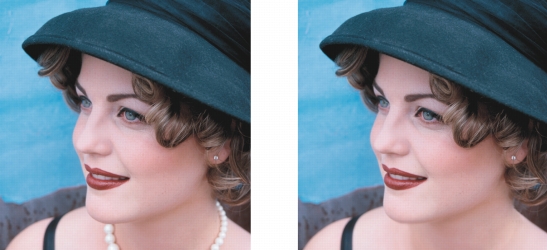
The Clone tool was used to remove the woman’s necklace.
| To clone an image area or object |  |
1 |
In the toolbox, click the Clone tool  . .
|
2 |
On the property bar, open the Clone picker, and click Clone.
|
3 |
Choose a brush from the Brush type list box.
|
4 |
Click the image to set a source point for the clone.
|
If you want to reset the source point, right-click the area you want to clone. |
5 |
Drag the clone brush in the image window to apply the pixels from the source
point.
|

|
Copyright 2010 Corel Corporation. All rights reserved.


 on the Stroke attributes bar that is displayed in the Brush settings docker. This option is available only for some of the Effect tools and the Clone tool. If the Brush settings docker is not open, click Window
  Dockers
  on the Dab attributes bar that is displayed in the Brush settings docker. This option is only available when the Toggle cumulative button is disabled.