
Quick links to procedures on this page:
• |
• |
• |
• |
• |
You can add shapes, such as squares, rectangles, circles, ellipses, and polygons, to images. You can also add rectangles and squares that have rounded, scalloped, or chamfered corners. By default, shapes are added to images as new objects. Shapes can be outlined, filled, or rendered as separate, editable objects. For more information about objects, see Creating objects.
You can also add lines to images. When you add lines, you can specify the width and transparency, as well as the way line segments join together. The current foreground color determines the color of a line.
| To draw a rectangle or square | |
1 |
In the toolbox, click the Rectangle tool  . .
|
2 |
On the property bar, choose one of the following options in the Fill list box:
|
• |
Uniform fill 
|
• |
Fountain fill 
|
• |
Bitmap fill 
|
• |
Texture fill 
|
If you want to edit the fill, click the Edit fill button on the property bar. |
3 |
Drag in the image window until the rectangle is the size you want.
|
If you want to draw a square, hold down Ctrl as you drag. |
 |
The current fill is displayed in the color control area of the toolbox. For
information about fills, see Filling images.
|
 |
You can use this procedure to create an object by clicking the New object
button  on the property bar after you click the Rectangle tool. on the property bar after you click the Rectangle tool.
|
| To draw a rectangle or square with round, scalloped, or chamfered corners | |
1 |
In the toolbox, click the Rectangle tool .
|
2 |
On the property bar, click one of the following options:
|
• |
Round corner  — produces a curved corner — produces a curved corner
|
• |
Scalloped corner  — replaces a corner with an edge that has a curved notch — replaces a corner with an edge that has a curved notch
|
• |
Chamfered corner  — replaces a corner with a flat edge — replaces a corner with a flat edge
|
3 |
On the property bar, type a value in the Corner size box.
|
4 |
Drag in the image window until the rectangle is the size you want.
|
If you want to draw a square, hold down Ctrl as you drag. |
| To draw an ellipse or circle | |
1 |
In the toolbox, click the Ellipse tool  . .
|
2 |
On the property bar, choose one of the following options in the Fill list box:
|
• |
Uniform fill
|
• |
Fountain fill
|
• |
Bitmap fill
|
• |
Texture fill
|
If you want to edit the fill, click the Edit fill button on the property bar. |
3 |
Drag in the image window until the rectangle or ellipse is the size you want.
|
If you want to draw a circle, hold down Ctrl as you drag. |
|
The current fill is displayed in the color control area of the toolbox. For
information about fills, see Filling images.
|
|
You can draw a circle with the Ellipse tool by holding down Ctrl as you drag.
|
You can use this procedure to create an object by clicking the New object
button on the property bar after you click the Rectangle or Ellipse tool.
|
| To draw a polygon | |
1 |
In the toolbox, click the Polygon tool  . .
|
2 |
On the property bar, choose one of the following options in the Fill list box:
|
• |
Uniform fill
|
• |
Fountain fill
|
• |
Bitmap fill
|
• |
Texture fill
|
If you want to edit the fill, click the Edit fill button on the property bar. |
3 |
Click where you want to set the anchor points of the polygon, and double-click to
set the last anchor point.
|
|
You can create 45-degree angles by holding down Ctrl while dragging the
Polygon tool .
|
You can use this procedure to create an object by clicking the New object
button on the property bar after you click the Polygon tool.
|
| To draw a line | |
1 |
In the toolbox, click the Line tool  . .
|
2 |
Type a value in the Outline width box on the property bar.
|
3 |
Click the Line color button on the property bar, and choose a color.
|
4 |
On the property bar, open the Line joint list box, and click one of the following:
|
• |
Butt — joins the segments. If you specify a higher width value, a gap appears
between the joined segments.
|
• |
Filled — fills the gaps between joined segments
|
• |
Round — rounds the corners between joined segments
|
• |
Point — makes points on the corners of joined segments
|
5 |
Drag in the image window to draw a single line segment.
|
|
You can use this procedure to create an object by clicking the New object
button on the property bar after you click the Line tool .
|
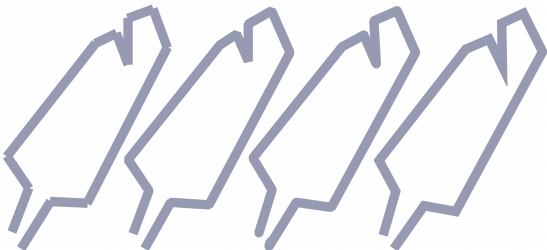
You can specify how lines join: Butt, Fitted, Round, or Point.

|
Copyright 2010 Corel Corporation. All rights reserved.
 on the property bar.
 on the property bar.