Quick links to procedures on this page:
• |
• |
• |
• |
You can add parts to and remove parts from an editable area.
By default, each editable area that you define replaces the last one defined. However, you can use the following mask modes if you want to retain the current editable area but modify its shape:
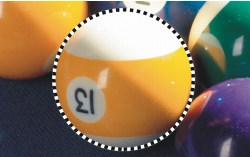
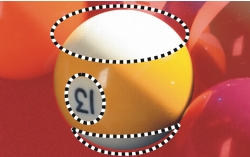
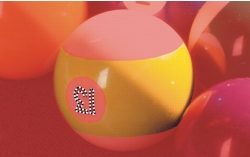
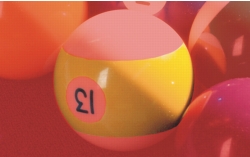
A mask mode remains active until you change modes. The following examples illustrate the use of the different mask modes.
You can remove protected areas from within an editable area. This feature is useful for modifying color masks that have large editable areas.
You can expand and contract an editable area by a specific number of pixels. The pixels are added to or removed from the edge of the editable area.
You can add adjacent pixels of a similar color to an editable area. The editable area expands until it reaches pixels with colors that are too dissimilar from the colors in the original editable area. The color tolerance value you specify sets the percentage of color variation allowed between the pixels in the original editable area and the adjacent protected areas.
You can also add all pixels of similar color to an editable area regardless of whether they are adjacent to those in the current editable area. The color tolerance value you specify sets the percentage of color variation allowed between the pixels in the original editable areas and the protected areas.
| To add to or subtract from an editable area |  |
1 |
In the toolbox, click a mask tool.
|
2 |
On the property bar, click one of the following buttons:
|
• |
Additive 
|
• |
Subtractive 
|
• |
Overlap 
|
3 |
Drag in the image to define the area that you want to add to, or subtract from, an
editable area.
|
 |
After you begin to drag, you can use Ctrl and Shift to constrain the shape of
the area you add or subtract. For example, if you’re using the Ellipse mask
tool, holding down Ctrl constrains the shape to a circle, and holding down Ctrl
+ Shift makes the circle expand from the center.
|
| To remove protected areas from an editable area | |
• |
Click Mask  Mask outline Remove holes. Mask outline Remove holes.
|
| To expand or contract an editable area | |
| To add adjacent pixels of similar color to an editable area | |
1 |
In the toolbox, click the Magic wand mask tool  . .
|
2 |
Type a value in the Tolerance box on the property bar.
|
3 |
Click Mask Mask outline, and click one of the following menu commands:
|
• |
Grow — expands an editable area to include all similarly colored adjacent pixels
|
• |
Similar — expands an editable area to include all similarly colored pixels in the
entire image
|

|
Copyright 2010 Corel Corporation. All rights reserved.