Quick links to procedures on this page:
• |
• |
• |
• |
• |
Corel PHOTO-PAINT lets you move an object or part of an object to a new location in the same image window or to another image window. You can also copy an object, or part of an object, and paste it into an image. To copy and paste between image windows, you can drag and drop an object from one window to another.
When you move or copy part of an image, you must first define an editable area for that part of the image. You can also move or copy an object into an editable area. For more information about defining editable areas, see Defining editable areas.
When you no longer need an object, you can delete it.
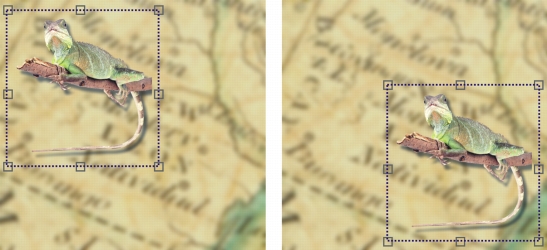
The selected photo object is moved from the top-left corner to the lower-right corner.
| To move an object |  |
 |
For information about setting the nudge value, see Setting options.
|
 |
You can move an object to a precise location that is relative to its current
position by enabling the Relative position button  on the property bar. on the property bar.
|
| To move part of an object | |
1 |
Select an object.
|
2 |
Define an editable area on the object.
|
3 |
Click Edit  Cut. Cut.
|
4 |
Click Edit Paste Paste as new object.
|
| To copy an object | |
1 |
Select an object.
|
2 |
Click Edit Copy.
|
3 |
Click Edit Paste Paste as new object.
|
|
If you paste the object into the same window, the copy is placed on top of the
original object.
|
|
You can also copy and paste an object using Ctrl + C to copy and Ctrl + V
to paste.
|
To copy a selected object within the same image window, click Object
Duplicate.
|
| To copy or move an object into an editable area | |
1 |
Select an object.
|
2 |
Click Edit, and click one of the following:
|
• |
Copy
|
• |
Cut
|
3 |
Define an editable area.
|
4 |
Click Edit Paste Into selection.
|
| To delete an object | |
1 |
Select an object.
|
2 |
Click Object Delete.
|
|
You can also delete a selected object by clicking the Delete button  in the
Objects docker. If the Objects docker is not open, click Window Dockers
Objects. in the
Objects docker. If the Objects docker is not open, click Window Dockers
Objects.
|

|
Copyright 2010 Corel Corporation. All rights reserved.
 on the property bar, and type values in the Position boxes on the property bar.