Quick links to procedures on this page:
• |
• |
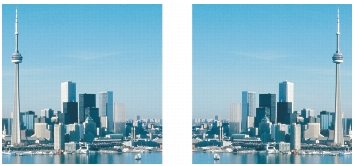
You can change the orientation of an image by flipping or rotating it in the image window. You can flip an image horizontally or vertically to reposition a scanned image or to create unique effects.
When you rotate an image, you can specify the angle and direction of rotation, as well as the paper color that is visible after the image is rotated.
You can mirror an image by flipping it.
| To flip an image |  |
• |
Click Image  Flip, and click one of the following: Flip, and click one of the following:
|
• |
Flip horizontally
|
• |
Flip vertically
|
| To rotate an image | |
1 |
Click Image Rotate Rotate custom.
|
2 |
Type a value in the Angle box.
|
3 |
Enable one of the following options:
|
• |
Clockwise
|
• |
Counterclockwise
|
4 |
Enable any of the following check boxes:
|
• |
Maintain original image size — maintains the size of the original image
|
• |
Anti-aliasing — smooths the edges in the image
|
5 |
Open the Background color picker, and click a color.
|
 |
You can rotate an image by clicking Image Rotate, and clicking 90°
Clockwise, 90° Counterclockwise, or 180°.
|
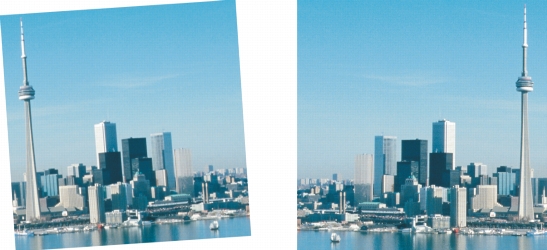
You can rotate an image to change its orientation.

|
Copyright 2010 Corel Corporation. All rights reserved.