Quick links to procedures on this page:
• |
You can smear, smudge, or blend the paint in an image. Smearing produces a similar effect to dragging across wet paint. Smudging has the same effect as rubbing across a pastel drawing. Blending softens the transition between colors or hard edges. You can smear, smudge, or blend the colors in an entire image or in an editable area you define. For more information about defining an editable area, see Working with masks.
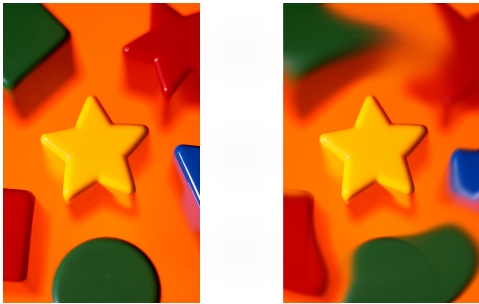
The Smear tool was used to alter the shapes surrounding the star.
| To smear, smudge, or blend colors in an image |  |
1 |
In the toolbox, click the Effect tool  . .
|
2 |
On the property bar, open the Effect tools picker, and click one of the following
tools:
|
• |
Smear 
|
• |
Smudge 
|
• |
Blend 
|
3 |
Choose a brush from the Brush type list box on the property bar.
|
4 |
Choose a nib from the Nib shape picker.
|
5 |
Type a value in the Size box to specify the nib size.
|
6 |
Drag in the image window.
|
 |
You can quickly choose a square or round brush shape by clicking the Round
nib button  or the Square nib button or the Square nib button  on the property bar. on the property bar.
|

|
Copyright 2010 Corel Corporation. All rights reserved.
 on the Stroke attributes bar that displays in the Brush settings docker. This option is available only for some of the Effect tools and the Clone tool. If the Brush settings docker is not open, click Window
  Dockers
  on the Dab attributes bar that displays in the Brush settings docker. This option is only available when the Cumulative button is disabled.