Quick links to procedures on this page:
• |
• |
• |
• |
• |
• |
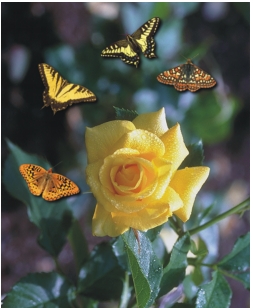
You can paint with small-scale, full-color bitmaps, instead of a brush. For example, you can enhance landscapes by spraying clouds across the sky or foliage across the ground.
Corel PHOTO-PAINT includes a variety of images, which are used to create spraylists. You can load a preset spraylist, edit a preset, or create a spraylist by saving images in an image list. You can edit the source images at any time.
In this example, butterflies have been sprayed around the rose.
| To spray images |  |
1 |
In the toolbox, click the Image sprayer tool  . .
|
2 |
Choose a preset image list from the Brush type list box on the property bar.
|
3 |
Type a value in the Size box on the property bar.
|
4 |
Drag in the image window.
|
 |
The minimum and maximum numeric values for a box on the property bar can
be displayed by right-clicking in the box to open the Settings dialog box.
|
| To load an image list | |
1 |
In the toolbox, click the Image sprayer tool .
|
2 |
Click the Load an image list button  on the property bar. on the property bar.
|
3 |
Choose the folder where the image list is stored.
|
4 |
Click a filename.
|
If you want to view a thumbnail of the image list, enable the Preview check box. |
5 |
Click Open.
|
| To create a spraylist | |
1 |
In the toolbox, click the Image sprayer tool .
|
2 |
Choose a preset image list from the Brush type list box on the property bar.
|
3 |
Click the Create spraylist button  on the property bar. on the property bar.
|
4 |
In the Create spraylist dialog box, specify the contents of the spraylist.
|
| To create an image list from an object | |
1 |
Using the Object pick  tool, select the objects you want to use as source images. tool, select the objects you want to use as source images.
|
2 |
In the toolbox, click the Image sprayer tool .
|
3 |
In the Brush settings docker, click the flyout button  , and click Save objects as
image list. , and click Save objects as
image list.
|
If the Brush settings docker is not open, click Window  Dockers Brush settings. Dockers Brush settings. |
4 |
Choose the folder where you want to save the image list.
|
5 |
Type a filename in the Filename box.
|
| To create an image list from an image | |
1 |
In the toolbox, click the Image sprayer tool .
|
2 |
In the Brush settings docker, click the flyout button , and click Save
document as image list.
|
If the Brush settings docker is not open, click Window Dockers Brush settings. |
3 |
Type values in any of the following boxes:
|
• |
Images per row — lets you specify the number of horizontal tiles in the image
list
|
• |
Images per column — lets you specify the number of vertical tiles in the image
list
|
• |
Number of images — lets you specify the number of images to include in the
list
|
4 |
Click OK.
|
5 |
Choose the folder where you want to save the image list.
|
6 |
Type a filename in the Filename box.
|
| To edit a source image | |
1 |
In the toolbox, click the Image sprayer tool .
|
2 |
In the Brush settings docker, click the flyout button , and click Edit current
image list.
|
If the Brush settings docker is not open, click Window Dockers Brush settings. |
3 |
Edit the source image.
|
If you want to overwrite the last version of the image list, click File Save as, and click Save in the Save an image to disk dialog box. |
|
After you edit an image list, you must reload it in the Image sprayer tool to
activate the changes.
|

|
Copyright 2010 Corel Corporation. All rights reserved.
 on the property bar.