Quick links to procedures on this page:
• |
• |
• |
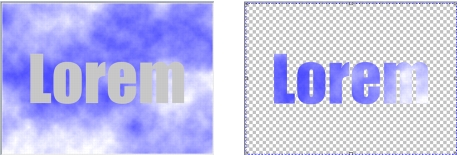
Clipping groups let you combine the characteristics of objects by placing the image elements from one or more objects into the shape of another; the characteristics of child objects are inserted into the shape of the parent object. For example, if the parent object is text, and the child object is a picture of the sky, the result will be text with the color and texture of the sky. An object is the parent to objects above it in the stacking order; a child object cannot be below the parent object.
Clippiug groups let you borrow the characteristics of one object and apply them to another. In this example, the text (parent object) has the color and texture of the sky (child object).
You can also create a clipping group that includes the background by converting the background image to an object. You can undo a clipping group at any time.
| To create a clipping group |  |
1 |
In the Objects docker, drag the child object above the parent object in the Objects
docker list.
|
2 |
In the image window, select the child object and drag it over the parent object.
|
3 |
Click the child object in the Objects docker list.
|
4 |
Click the Create clipping group button  . .
|
 |
Only areas of the child object that fall within the boundaries of the parent
object are visible. Only the object marquee of the child object is visible in areas
that fall outside the boundaries of the parent object.
|
| To create a clipping group that includes the background image | |
1 |
In the Objects docker, click the background.
|
2 |
Click Object  Create From background. Create From background.
|
The background appears as an object in the Objects docker. |
3 |
In the Objects docker, drag the background object, which becomes the child
object, above the parent object in the list.
|
4 |
Click the background object in the Objects docker list.
|
5 |
Click the Create clipping group button .
|
| To undo a clipping group | |
1 |
In the Objects docker, click the child object that is contained in the clipping
group.
|
If the object belongs to a clipping group, a clipping group symbol displays to the left of the object name. |
2 |
Click the Create clipping group button to undo the clipping group.
|

|
Copyright 2010 Corel Corporation. All rights reserved.