Quick links to procedures on this page:
• |
• |
• |
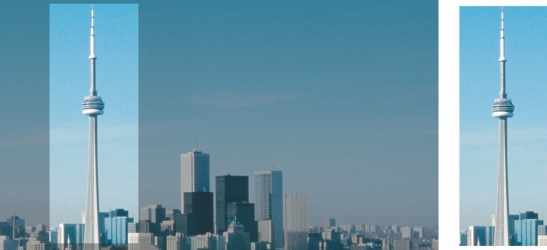
You can crop an image to remove unwanted areas and improve its composition. You can select a rectangular area that you want to keep, and then you can discard the rest. As a result, you reduce the file size of an image without affecting its resolution.
Cropping lets you remove unwanted image areas.
You can also easily crop a single-color border surrounding an image, such as a white edge surrounding an old photograph.
Corel PHOTO-PAINT also lets you crop around the editable area of a mask; however, the resulting image is always rectangular. For information about masks, see Working with masks.
You can also change the size of an image without removing or adding image areas by changing the image dimensions and resolution. For more information, see Changing image dimensions, resolution, and paper size.
| To crop an image |  |
1. |
Click the Crop tool  . .
|
2. |
Drag to select an area on the image.
|
3. |
Double-click inside the cropping area.
|
 |
You can hide the crop overlay to view the image you are cropping more clearly.
Click Image  Crop Crop overlay. Crop Crop overlay.
|
You can also crop an image area by clicking the Crop tool and typing values
in the Size and Position boxes on the property bar.
|
| To crop a border color from an image | |
1. |
Click Image Crop Crop border color.
|
2. |
Enable one of the following options:
|
• |
Background — crops the color specified in the Background color swatch  in
the color control area of the toolbox in
the color control area of the toolbox
|
• |
Foreground — crops the color specified in the Foreground color swatch  in
the color control area of the toolbox in
the color control area of the toolbox
|
• |
Other — crops the color you choose using the color picker or the Eyedropper
tool 
|
3. |
In the Tolerance area, enable one of the following options:
|
• |
Normal — determines the color tolerance based on the similarity of hue values
between adjacent pixels
|
• |
HSB mode — determines the color tolerance based on the similarity of hue,
saturation, and brightness levels between adjacent pixels
|
4. |
Move the Tolerance slider to set the tolerance for the color that you want to crop.
|
You may need to experiment with different Tolerance slider positions to successfully remove the border color. |
| To crop to an editable area of a mask | |
1. |
Define an editable area on an image.
|
2. |
Click Image Crop Crop to mask.
|
 |
For more information about defining editable areas, see Working with masks.
|

|
Copyright 2012 Corel Corporation. All rights reserved.
 . Drag the rotation handles to align the cropping area with the image area you want to crop.