Quick links to procedures on this page:
• |
• |
• |
• |
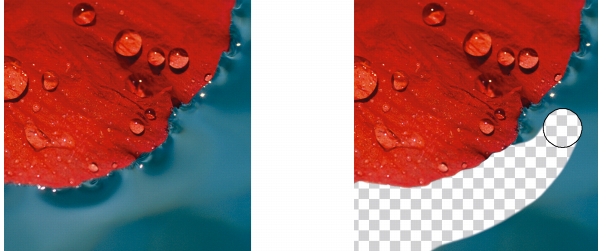
You can edit images and objects by erasing areas. For example, you can erase part of an object to change its shape or reveal more of the layer below. You can also erase areas of the image to reveal the background color, or erase part of the last action applied to the image.
The tools used to erase have many of the same settings as brushes, which means you can control the size, shape and transparency to create unique effects. For example, you can apply a bitmap fill to the entire image, increase the transparency value of the eraser tool, and create a superimposed effect by partially erasing the fill (the last action performed). You can also erase image areas based on color. The background color replaces the foreground color you erase.
The Eraser tool was used to erase the background.
| To erase part of an object |  |
1. |
Select an object.
|
2. |
Click the Eraser tool  . .
|
3. |
Specify the settings you want on the property bar.
|
4. |
Drag across the area you want to erase.
|
 |
The erased areas reveal the object below.
|
 |
To maintain the shape of an object, enable the Lock object transparency
button  on the Objects docker. If the Objects docker is not open, click
Window on the Objects docker. If the Objects docker is not open, click
Window  Dockers Objects. Dockers Objects.
|
| To erase image areas and reveal the background color | |
1. |
Click the Eraser tool .
|
2. |
Specify the settings you want on the property bar.
|
3. |
Drag across the image area you want to erase.
|
| To erase the last action applied to an image | |
1. |
In the toolbox, click the Undo brush tool  . .
|
2. |
Specify the settings you want on the property bar.
|
3. |
Drag across the area you want to erase.
|
|
If you want to erase the last action completely, click the Undo button  on
the standard toolbar. For more information about undoing, see Undoing,
redoing, repeating, and fading actions. on
the standard toolbar. For more information about undoing, see Undoing,
redoing, repeating, and fading actions.
|
|
You can also erase the last action applied to an object, but you must use the
Eraser tool to erase the object itself.
|
| To replace a foreground color with the background color | |
1. |
In the toolbox, click the Replace color brush tool  . .
|
2. |
On the property bar, choose a nib shape from the Nib shape picker.
|
3. |
Type a value in the Tolerance box to specify the color tolerance based on color
similarity.
|
4. |
In the color control area of the toolbox, double-click the Foreground color swatch,
and choose a color.
|
5. |
Drag in the image window.
|
|
You can select a foreground color from the image by clicking the Eyedropper
tool  , and clicking a color in the image window. The color you select displays
in the Foreground color swatch. , and clicking a color in the image window. The color you select displays
in the Foreground color swatch.
|
You can quickly choose a square or round brush shape by clicking the Round
nib button  or the Square nib button or the Square nib button  on the property bar. on the property bar.
|

|
Copyright 2012 Corel Corporation. All rights reserved.