Quick links to procedures on this page:
• |
• |
• |
• |
• |
• |
You can group objects so they behave as one unit. Grouped objects can be moved, deleted, or transformed as a single entity. Even hidden objects in a group are transformed together with the visible objects.
You can add objects to, or remove objects from, an existing group. You can also nest a group of objects, which allows you to group objects within an existing group. You can also ungroup the objects when you want to edit them individually.
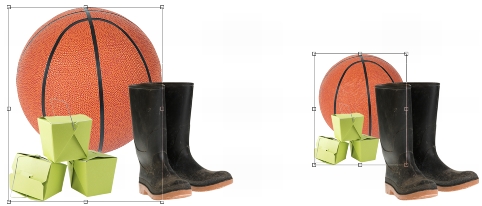
Grouped objects can be moved or transformed together. In this example, the ball and the boxes are grouped and resized as a group.
Combining objects lets you group them permanently. You can combine multiple objects into one object, or combine objects with the background. When you combine objects, you lose the ability to edit the objects independently. You can also decrease the file size of an image by combining objects.
| To group objects |  |
1. |
In the image window, select the objects.
|
2. |
Click Object  Arrange Group. Arrange Group.
|
 |
You can also group objects in the Objects docker by holding down Ctrl,
selecting the objects that you want to group, and clicking the New group
button  . .
|
| To add an object to a group | |
1. |
In the image window, select an object in a group.
|
2. |
Hold down Shift, and click the object that you want to add.
|
3. |
Click Object Arrange Group.
|
|
You can also add an object to an existing group in the Objects docker by
selecting the object and dragging it to the group.
|
| To remove an object from a group of objects | |
1. |
Open the Object docker.
|
2. |
In the Objects docker, click the group arrow button to expand the group list.
|
If the Objects docker is not displayed, click Window Dockers Objects. |
3. |
Select the object from the group list.
|
4. |
Drag it out of the group.
|
| To nest a group of objects | |
1. |
In the Objects docker, click the group arrow button to expand the group list.
|
If the Objects docker is not displayed, click Window Dockers Objects. |
2. |
Hold down Ctrl and select the objects in the group that you want to nest.
|
3. |
Click the New group button .
|
| To ungroup objects | |
1. |
In the image window, click a group of objects.
|
2. |
Click Object Arrange Ungroup.
|
| To combine objects | |
 |
When objects are combined with the background, they become part of the
background layer and can no longer be edited as individual objects.
|
|
You can also combine objects in the Objects docker by holding down Ctrl,
selecting the objects that you want to combine, and clicking the Combine
selected objects button  . .
|
You can specify a merge mode and transparency level before you combine
objects by modifying the settings in the Merge mode list box and Opacity box
in the Objects docker. If the Objects docker is not open, click Window
Dockers Objects.
|

|
Copyright 2012 Corel Corporation. All rights reserved.