Quick links to procedures on this page:
• |
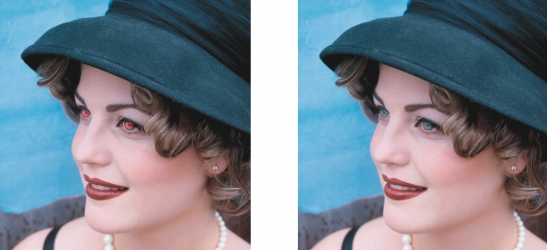
You can remove the red-eye effect from the eyes of subjects in photos. Red-eye occurs when light from a flash reflects off the back of a person’s eye.
You can remove red-eye from photos.
| To remove red-eye |  |
1. |
In the toolbox, click the Red-eye removal tool  . .
|
2. |
Type a value in the Size box to match the brush size to the eye.
|
3. |
Click the eye to remove the red pixels.
|
|
You can also
|
|
|---|---|
|
Change the tolerance level
|
On the property bar, choose a value in the Tolerance box.
|
|
Change the brush shape
|
On the property bar, choose a brush shape from the Nib shape picker.
|
 |
The default Tolerance value corrects red-eye in most photos; however, if it is
difficult to isolate the eye area, and a subject has red tones in their face, you
may want to decrease the Tolerance value to differentiate the red in the eye
from the skin tone.
|
 |
You can quickly zoom to the eye area by clicking the Zoom tool  in the
toolbox, and dragging in the image window to enclose the eye area in the
zooming rectangle. in the
toolbox, and dragging in the image window to enclose the eye area in the
zooming rectangle.
|
You can adjust the brush size interactively by holding down Shift while
dragging in the image window.
|

|
Copyright 2012 Corel Corporation. All rights reserved.