Quick links to procedures on this page:
• |
• |
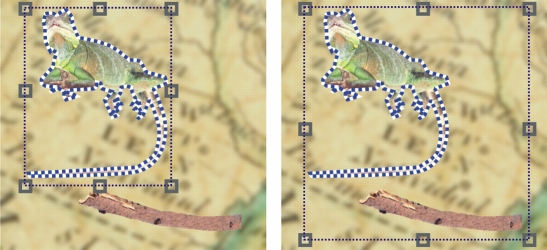
You must select objects before you can change them. You can select one object, covered objects, multiple objects, all objects, or multiple groups of objects. When you select a single object, a highlighting box with eight transformation handles surrounds the object. When you select multiple objects, the highlighting box expands to surround all of the objects.
You can select multiple objects, but only one object is active. The active object is outlined by a dashed outline called a marquee. You can edit the active object by filling it and applying special effects to it.
When you finish making changes to the selected objects, you can deselect them.
One object is selected in the image on the left. On the right, the highlighting box indicates that both objects are selected. The object marquee appears around the lizard, which is the active object.
| To select objects |  |
 |
If the background is selected before you click Objects  Select all, it is added
to the selection — all objects and the background are now selected. If an object
is selected before you click Objects Select all, the background is not
included in the selection. Select all, it is added
to the selection — all objects and the background are now selected. If an object
is selected before you click Objects Select all, the background is not
included in the selection.
|
 |
You can select an object by clicking a thumbnail in the Objects docker. If the
Objects docker is not open, click Window Dockers Objects.
|
You can also select objects in the Objects docker stacking order using the
following shortcut keys: press Shift + N to select the object above the current
object; Shift + P to select the object below the current object; Shift + T to
select the top object in the stacking order; and Shift + B to select the
background object or the bottom object in the stacking order.
|
| To deselect objects | |
|
When you deselect an active object, it is still active.
|
If the background is part of the selection, clicking the background in the image
window does not deselect all objects.
|

|
Copyright 2012 Corel Corporation. All rights reserved.
 , and click an object.