Quick links to procedures on this page:
• |
• |
• |
• |
• |
• |
• |
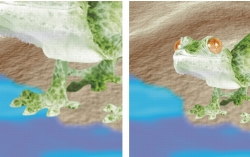
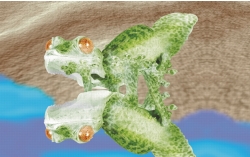
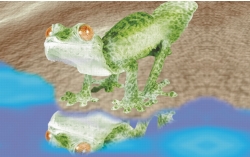
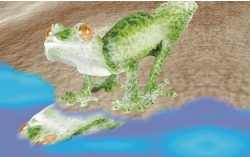
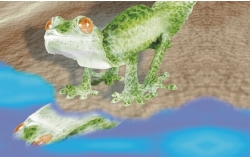
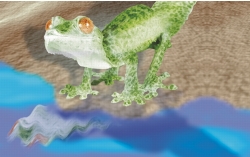
You can change the appearance of objects by using the following transformations.
You can apply freeform transformations in the image window or manually adjust settings for more precise results.
You can apply transformations to a single object or multiple objects simultaneously.
• |
| To size an object |  |
1. |
Select an object.
|
2. |
Click the Position and size button  on the property bar. on the property bar.
|
3. |
Drag any of the handles on the bounding box.
|
If you want to cancel the transformation, double-click outside the object. |
4. |
Click the Apply transformation button  on the property bar. on the property bar.
|
 |
You can resize the object from the center by holding down Shift as you drag
any of the handles.
|
You can also change the size of a selected object by typing values in the Size
boxes, and clicking the Apply transformation button on the property bar.
|
| To scale an object | |
1. |
Select an object.
|
2. |
Click the Scale button  on the property bar. on the property bar.
|
3. |
Drag a corner handle on the bounding box.
|
If you want to cancel the transformation, double-click outside the object. |
4. |
Click the Apply transformation button on the property bar.
|
|
You can also scale a selected object by typing values in the Size boxes, and
clicking the Apply transformation button on the property bar.
|
 |
When you scale, skew, or rotate an object, its edges can appear jagged. For this
reason, these transformation modes enable anti-aliasing by default.
|
| To rotate an object | |
1. |
Select an object.
|
2. |
Click the Rotate button  on the property bar. on the property bar.
|
3. |
Drag a rotation handle on the bounding box.
|
If you want to cancel the transformation, double-click outside the object. |
4. |
Click the Apply transformation button on the property bar.
|
|
You can also switch to rotate mode by clicking an object twice. As you cycle
through the transformation modes, the handles surrounding an object will
change to indicate the active mode.
|
|
When you scale, skew, or rotate an object, its edges can appear jagged. For this
reason, these transformation modes enable anti-aliasing by default.
|
| To flip an object | |
1. |
Select an object.
|
2. |
Hold down Ctrl, and drag a middle handle on the highlighting box across the
object, past the middle handle on the opposite side.
|
If you want to cancel the transformation, double-click outside the object. |
3. |
Click the Apply transformation button on the property bar.
|
|
You can flip a selected object disproportionately by not holding down Ctrl
while dragging a middle handle of the highlighting box across the middle
handle on the opposite side.
|
| To skew an object | |
1. |
Select an object.
|
2. |
Click the Skew button  on the property bar. on the property bar.
|
3. |
Drag a skewing handle on the bounding box.
|
If you want to cancel the transformation, double-click outside the object. |
4. |
Click the Apply transformation button on the property bar.
|
|
When you scale, skew, or rotate an object, its edges can appear jagged. For this
reason, these transformation modes enable anti-aliasing by default.
|
|
You can also skew an object by typing values in the Size boxes and clicking the
Apply transformation button on the property bar.
|
| To distort an object | |
1. |
Select an object.
|
2. |
Click the Distort button  on the property bar. on the property bar.
|
3. |
Drag a distortion handle on the bounding box.
|
If you want to cancel the transformation, double-click outside the object. |
|
You can also switch to distort mode by clicking an object two times. As you
cycle through the transformation modes, the handles surrounding an object
will change to indicate the active mode.
|
| To apply perspective to an object | |
1. |
Select an object.
|
2. |
Click the Perspective button  on the property bar. on the property bar.
|
3. |
Drag a perspective handle on the bounding box.
|
If you want to cancel the transformation, double-click outside the object. |
|
You can also switch to perspective mode by clicking an object three times. As
you cycle through the transformation modes, the handles surrounding an
object will change to indicate the active mode.
|

|
Copyright 2012 Corel Corporation. All rights reserved.