Quick links to procedures on this page:
• |
When you draw with traditional media, the amount of pressure that you use with a tool determines the density and width of your strokes. Using a pressure-sensitive stylus with Corel Painter gives you the same kind of control. Because each artist uses a different strength or pressure level in a stroke, you can adjust Corel Painter to match your stroke strength for all brushes by using the Brush Tracking preferences, or for a specific brush, by using the Brush Calibration controls.
Brush Tracking is particularly useful for artists with a light touch. If a light stroke leaves no color on the canvas, you can use Brush Tracking to increase sensitivity for all brushes. Corel Painter saves Brush Tracking between sessions, so whatever tracking sensitivity you set will be the default the next time you open the application.
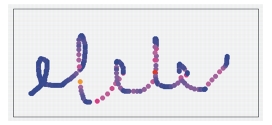
The most common way of adjusting brush tracking is to apply a typical brush stroke, such as a wavy stroke, to the scratch pad. Corel Painter then uses your stroke to calculate the appropriate pressure and velocity settings for all brush variants.
Use the scratch pad in the Brush Tracking dialog box to customize how Corel Painter responds to your stroke pressure and speed.
| To set brush tracking |  |
1 |
Do one of the following:
|
• |
(Mac OS) Choose Corel Painter  Preferences Brush Tracking. Preferences Brush Tracking.
|
• |
(Windows) Choose Edit Preferences Brush Tracking.
|
2 |
Drag in the scratch pad by using a “normal” stroke.
|
Use the pressure and speed you prefer when drawing or painting. This allows the Brush Tracker to calculate the appropriate speed and pressure settings for the brush. |
To adjust the settings manually, perform a task from the following table: |
 |
Some features described in the Help are available only in Corel Painter 12, and are not included in Painter Lite. Visit www.corel.com/painter for more information about Corel Painter 12. |
Copyright 2012 Corel Corporation. All rights reserved.