Quick links to procedures on this page:
• |
You can erase any part of your image and control the opacity of erased areas. You can also link the opacity to stylus pressure or specify a fixed opacity value.
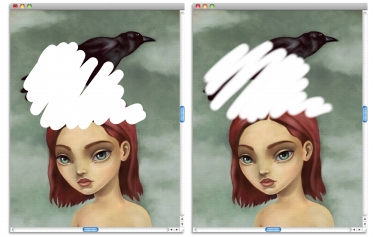
You can set the Eraser opacity to Hard (left) or Soft (right).
| To erase an image area |  |
1 |
In the Layers panel, choose the layer on which you want to erase.
|
2 |
Choose the Eraser tool  in the toolbox. in the toolbox.
|
3 |
On the property bar, adjust the Size pop-up slider  and the Opacity pop-up
slider and the Opacity pop-up
slider  . .
|
4 |
Click one of the following buttons:
|
• |
Soft Mode  — sets opacity based on stylus pressure. The more pressure you
apply, the higher the opacity. The initial opacity level is determined by the
Opacity pop-up slider. — sets opacity based on stylus pressure. The more pressure you
apply, the higher the opacity. The initial opacity level is determined by the
Opacity pop-up slider.
|
• |
Hard Mode  — sets opacity based on the value specified by the Opacity pop-
up slider — sets opacity based on the value specified by the Opacity pop-
up slider
|
 |
You can toggle between Soft Mode and Hard Mode by holding down Option
(Mac OS) or Alt (Windows) as you drag in the image window.
|
You can erase in straight lines by clicking the Straight Line Strokes button  on the property bar, clicking a point on the canvas where you want to start
your line, and clicking where you want to end the line.
on the property bar, clicking a point on the canvas where you want to start
your line, and clicking where you want to end the line.
|
You can also erase image areas by choosing the Brush tool  in the toolbox
and choosing Erasers from the Brush Category selector on the Brush Selector
bar. in the toolbox
and choosing Erasers from the Brush Category selector on the Brush Selector
bar.
|
 |
Some features described in the Help are available only in Corel Painter 12, and are not included in Painter Lite. Visit www.corel.com/painter for more information about Corel Painter 12. |
Copyright 2012 Corel Corporation. All rights reserved.