
Quick links to procedures on this page:
• |
• |
• |
• |
• |
• |
• |
• |
• |
• |
• |
• |
To manage layers in a document, you can select, view, or hide them, or change their position in the hierarchy.
Selecting a layer lets you make changes to it. If no layers are selected, any changes you make apply to the canvas. The Auto Select Layer option changes your ability to select and move layers with the Layer Adjuster tool.
By default, the Auto Select Layer option is disabled. This means that the layer selection is “locked in” — the Layer Adjuster tool affects only the selected layer or layers. In other words, you cannot select a layer by clicking it in the document window; you must select a layer by clicking it in the Layers panel. When the Auto Select Layer option is enabled, you can select layers automatically with the Layer Adjuster tool by clicking an area of layer content in the document window.
| To select a layer | |
 |
You can also press the F key to activate the Layer Adjuster tool.
|
If you are working with a shape, you can switch to the Shape Selection tool
 by double-clicking a shape with the Layer Adjuster tool. by double-clicking a shape with the Layer Adjuster tool.
|
| To deselect layers | |
• |
In the Layers panel, click the Canvas.
|
Deselecting one or more layers automatically selects the Canvas layer. |
|
You can also deselect a layer by clicking the layer you want to deselect in the
Layers panel, then clicking the Layer Options button  , and choosing
Deselect Layer. , and choosing
Deselect Layer.
|
When a layer is selected, you can move its content anywhere in the document to create a new image layout.
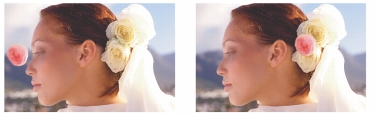
The pink rose was added to an individual layer. The rose layer (left) was repositioned on top of the white roses (right).
Think of a layer’s content as being contained by an invisible bounding box. This bounding box is a rectangle that marks the left, right, top, and bottom edges of the layer’s content. When you move or align a layer, you work with the dimensions and position of this bounding box, not with the entire area of the layer. This allows you to easily position the contents of a layer in relation to the canvas.
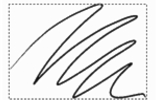
This layer contains a brushstroke. The content area is defined by an invisible bounding box (indicated by a dashed outline in the image).
| To move or nudge a layer | |
1 |
In the Layers panel, select the layer or group you want to move.
|
2 |
Perform an action from the following table.
|
|
To
|
Do the following
|
|---|---|
|
Move a layer
|
Click the Layer Adjuster tool
 in the toolbox, and drag the selected layer in the document window. in the toolbox, and drag the selected layer in the document window.
|
|
Move a layer one pixel at a time
|
Press the Arrow keys to move the selected layer one pixel at a time.
|
|
Move a layer to a new document window
|
With two or more documents open in the application window, click the Layer Adjuster tool
in the toolbox, and drag the selected layer to another document window.
|
| To move a layer to a specific location | |
1 |
In the Layers panel, select a layer or group.
|
2 |
Click the Layer Options button , and choose Layer Attributes.
|
3 |
In the Position area, type values in the following boxes:
|
• |
Top — defines the distance in pixels from the top edge of the canvas to the top
edge of the layer’s content. Increase to move the layer down, or decrease to
move the layer up.
|
• |
Left — defines the distance in pixels from the left edge of the canvas to the left
edge of the layer’s content. Increase to move the layer to the right, or decrease
to move the layer to the left.
|
 |
If you use negative values, or values larger than the canvas dimensions, the
layer is placed partially or wholly outside the canvas.
|
|
You can also open the Layer Attributes dialog box for pixel-based and
reference layers by double-clicking the item in the Layers panel, or by
selecting an item and pressing Return (Mac OS) or Enter (Windows).
|
You can control your view of an image in the document window by changing layer visibility settings. This is helpful in both compositing an image and applying effects. You can hide one layer to gain better visibility of the layer below it.
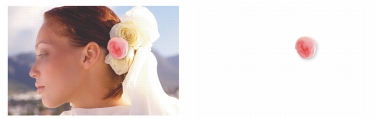
In the example on the right, the layer containing the background is hidden; in the example on the left, the layer containing the background is visible.
Layer visibility settings stay active when you print or save documents to certain file formats. In other words, the content of hidden layers does not print and is not saved. However, saving a document in RIFF or PSD format preserves hidden layers as part of the document. For more information, see Saving Files That Contain Layers.
| To show or hide a layer or the canvas | |
• |
In the Layers panel, click the eye icon next to the layer name or the canvas.
|
When the eye is shut  , the layer is hidden in the document window. When the eye is open , the layer is hidden in the document window. When the eye is open  , the layer is visible in the document window. , the layer is visible in the document window. |
The hierarchy of layers determines how the layers in a document interact. When you create a new pixel-based layer, it appears on top of the existing layers (when the canvas is selected) or on top of the selected layer. Depending on its transparency, masking, and compositing characteristics, the layer will obscure or otherwise affect the underlying layers.
A document’s layer hierarchy is reflected in the Layers panel. The bottom layer is always the canvas.

In this example, the picture of the brush is contained in a layer. The brush layer is displayed in the top position (left) and in the bottom position (right).
| To change a layer’s position in the hierarchy | |
1 |
Choose the Layer Adjuster tool from the toolbox.
|
2 |
In the Layers panel, select the layer you want to reposition in the hierarchy.
|
3 |
Perform an action from the following table.
|
|
To
|
Do one of the following
|
||||||
|---|---|---|---|---|---|---|---|
|
Move a layer to the bottom
|
|
||||||
|
Move a layer to the top
|
|
||||||
|
Move a layer down one
|
|
||||||
|
Move a layer up one
|
|
|
When you have nonoverlapping layers in a document, the Move Up One
Layer and Move Down One Layer commands may move the selected layer
past multiple layers. This is because nonoverlapping layers are considered to
be at the same level. The Move Up One Layer and Move Down One Layer
commands move the selected layer (or layers) above or below the next level.
To move a layer to a position between nonoverlapping layers, drag it in the
Layers panel.
|
Grouping layers enables you to control layers as a unit.
You can move, rename, hide, show, and set options for a group just as you do for a single layer. However, you cannot paint across layers in a group; you must collapse the group into a single layer if you want to paint on it.
To work with individual layers in a group, you must open the group. To regain control of the group as a unit, you must close the group. Collapsing a group reduces its contents to a single layer.
If you create a new layer while you have a layer within a group selected in the Layer panel, the new layer is added to the group. If the group is selected, the layer is placed above the group.
| To create a group | |
1 |
In the Layers panel, select the layers you want to group.
|
For more information about selecting multiple layers, refer to Selecting Layers. |
2 |
Click the Layer Options button , and choose Group Layers.
|
The layers are collected under a group item in the Layers panel. |
|
If you select nonsequential layers (layers not next to each other in the list),
Corel Painter creates the group at the position of the topmost layer. To select
nonsequential layers, in the Layers panel, hold down Shift and click each layer
you want to select.
|
| To open or close a group | |
• |
In the Layers panel, click the arrow to the left of the group.
|
When the arrow points down  and you can see the group items, the group is open. When the arrow points to the right and you can see the group items, the group is open. When the arrow points to the right  and the names of the group members are hidden, the group is closed. and the names of the group members are hidden, the group is closed. |
| To add or remove a layer in a group | |
1 |
In the Layers panel, open the destination group.
|
2 |
Perform an action from the following table.
|
|
To
|
Do the following
|
|---|---|
|
Add a layer to a group
|
Drag a layer to the group.
|
|
Remove a layer from a group
|
Drag the layer out of the group.
|
|
You can create a nested group by dragging a closed group to the open
destination group.
|
| To ungroup layers | |
1 |
In the Layers panel, select the group.
|
If the group is open, close the group. |
2 |
Click the Layer Options button , and choose Ungroup Layers.
|
| To collapse a group | |
1 |
In the Layers panel, select the group.
|
2 |
Click the Layer Options button , and choose Collapse Layers.
|
|
You can also collapse layers by clicking the Layer Options button , and
choosing Collapse Layers.
|
Dropping a layer or group merges its contents with the canvas. After you drop a layer, you can no longer access the layer’s content separately from the canvas. You can drop specific layers or you can drop all layers at once.
| To drop a layer | |
|
To
|
Do the following
|
|---|---|
|
Drop specific layers
|
In the Layers panel, select the layers (or groups) that you want to drop, click the Layer Options button
, and choose Drop.
|
|
Drop all layers
|
In the Layers panel, click the Layer Options button
, and choose Drop All.
|
 |
Some features described in the Help are available only in Corel Painter 12, and are not included in Painter Lite. Visit www.corel.com/painter for more information about Corel Painter 12. |
Copyright 2012 Corel Corporation. All rights reserved.
 on the property bar enabled,
click anywhere in a layer’s content.
on the property bar enabled,
click anywhere in a layer’s content.
 Move
to Bottom.
Move
to Bottom.
 .
.
 .
.
 .
.
 .
.