Quick links to procedures on this page:
• |
Offset sampling, also known as “point-to-point cloning,” lets you sample an area of an image and then reuse it elsewhere within the document. Sampling is a useful technique for retouching photographs.
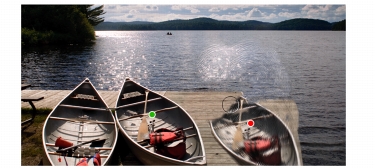
To perform offset sampling, you must set a sampling reference point and then set destination reference points. Sampling reference points specify the area of the document that you want to reuse, or clone. Destination reference points determine the area where you want the sampled image to appear. To identify which area of the source document you are sampling, you can turn the crosshairs cursor on.
The green dot (left) represents the sampling reference point. The red dot (right) represents the destination point.
| To perform offset sampling within a document |  |
1 |
Click the Rubber Stamp tool  in the toolbox. in the toolbox.
|
If you want to adjust the size of the sampled area, type a value in the Size box, or adjust the slider on the property bar. |
2 |
Hold down Option (Mac OS) or Alt (Windows), and click to set the source
reference point.
|
A green marker appears on the image, indicating the reference point for the source image. |
3 |
Hold down Option + Shift (Mac OS) or Alt + Shift (Windows), and click to set
the destination reference point.
|
4 |
Apply brushstrokes to the destination area to reveal the sampled area.
|
You can disable offset sampling by clicking the Clone Color button in the Color panel or by clicking the Brush Selector on the Brush Selector bar, and choosing a non-Cloner brush variant. |
 |
You can set the destination area before painting by clicking while holding
down Option + Shift (Mac OS) or Alt + Shift (Windows). A red marker
indicates the destination area.
|
 |
Some features described in the Help are available only in Corel Painter 12, and are not included in Painter Lite. Visit www.corel.com/painter for more information about Corel Painter 12. |
Copyright 2012 Corel Corporation. All rights reserved.