Quick links to procedures on this page:
• |
• |
• |
Corel Painter has a variety of effects that let you adjust color and tone. Some effects are designed primarily for correcting colors, while others let you adjust colors for special effects. For example, you can invert colors.
You can also use tools, such as the Dodge tool and the Burn tool, to adjust color and tone in specific areas.
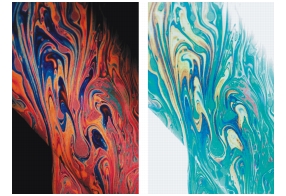
The Negative effect inverts all the colors in your image or in the selected layer.
Positive (left) and negative (right) versions of an image.
| To invert colors |  |
1 |
Select a layer or area of the canvas.
|
If you want to invert the entire image, do not make a selection. |
2 |
Choose Effects  Tonal Control Negative. Tonal Control Negative.
|
The Dodge and Burn tools let you adjust the highlights, midtones, and shadows in an image. The Dodge tool lightens the tone; the Burn tool darkens it. You can dodge and burn anywhere in a photo, affecting an area as large or as small as you like.
| To lighten the tone | |
1 |
Choose the Dodge tool  from the toolbox. from the toolbox.
|
2 |
On the property bar, move the Size slider  , or type a value in the Size box, to
adjust the size of the Dodge tool. , or type a value in the Size box, to
adjust the size of the Dodge tool.
|
3 |
Move the Opacity slider  , or type a value in the Opacity box, to adjust the
opacity of the Dodge tool. , or type a value in the Opacity box, to adjust the
opacity of the Dodge tool.
|
4 |
Move the Jitter slider, or type a value in the Jitter box, to specify the amount of
randomness in the stroke.
|
5 |
Drag the brush in the image to apply the effect.
|
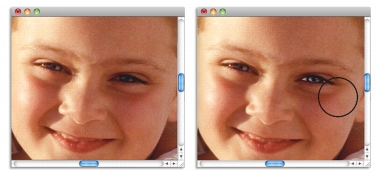
The Dodge tool was used to lighten the girl’s eye.
| To darken the tone | |
1 |
Choose the Burn tool  from the toolbox. from the toolbox.
|
If the Burn tool is not displayed in the toolbox, hold down the Dodge tool to open the tool flyout. |
2 |
On the property bar, move the Size slider , or type a value in the Size box, to
adjust the size of the Burn tool.
|
3 |
Move the Opacity slider , or type a value in the Opacity box, to adjust the
opacity of the Burn tool.
|
4 |
Move the Jitter slider, or type a value in the Jitter box, to specify the amount of
randomness in the stroke.
|
5 |
Drag the brush in the image to apply the effect.
|
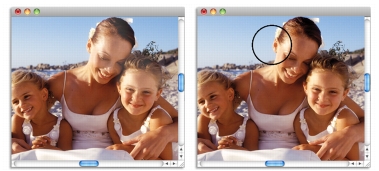
The Burn tool was used to reduce the strong highlights on the faces.
 |
Some features described in the Help are available only in Corel Painter 12, and are not included in Painter Lite. Visit www.corel.com/painter for more information about Corel Painter 12. |
Copyright 2012 Corel Corporation. All rights reserved.