Quick links to procedures on this page:
• |
• |
• |
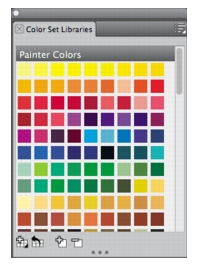
Corel Painter uses color sets to organize groups of colors. Some color sets are organized by both name and color relationship. You can open any of the available color sets, choose a color from the color set, and then apply it to a brushstroke. You can open multiple color sets at a time.
If you need to find a specific color in a color set, you can search for the color by name or have Corel Painter find the color that comes closest to matching the current color.
Color Sets panel
| To display the Color Sets panel |  |
• |
Choose Window  Color Panels Color Sets. Color Panels Color Sets.
|
| To choose a color from a color set | |
• |
In the Color Set Libraries panel, click a color.
|
| To find a color in a color set | |
1 |
In the Color Set Libraries panel, do one of the following:
|
• |
Click the Search for Color button  . .
|
• |
Click the Color Set Options button  , and choose Find Swatch. , and choose Find Swatch.
|
2 |
In the Find Color dialog box, do one of the following:
|
• |
Enable the By Name option, and type a name in the box.
|
• |
Enable Closest to Current Color.
|
3 |
Click Begin.
|
4 |
Click OK when the desired color is found.
|
If the color set is visible, Corel Painter surrounds the found color with a selection frame. |
If you search for a color by name, but a color with that name is not found, the OK button is not available (it is grayed out). |
 |
Some features described in the Help are available only in Corel Painter 12, and are not included in Painter Lite. Visit www.corel.com/painter for more information about Corel Painter 12. |
Copyright 2012 Corel Corporation. All rights reserved.