Quick links to procedures on this page:
• |
• |
• |
• |
• |
• |
You can rearrange the display of panels to better match your workflow. For example, you can group task-related panels together in one palette. At any time, you can further customize these palettes by adding or removing a panel, repositioning a panel, or moving a panel to another palette.
You can easily display a panel when you need it, and you can quickly close a panel when you’re done. If you want to save screen space, but keep the panels and palettes displayed (in the application window), you can collapse or resize them.
Most panels in Corel Painter contain option menus from which you can access a series of related commands. For example, you can use the options menu in the Paper controls panel to capture, make, and invert paper textures.
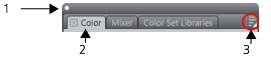
A typical palette features a header bar (1), panel tabs (2), and a Panel Options button (3).
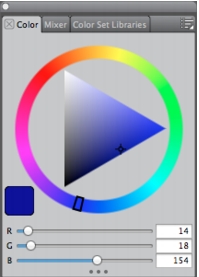
The contents of the Color panel. By default, the Color panel is open and is grouped in a palette with the Mixer and Color Sets.
| To group panels into palettes |  |
• |
Perform a task from the following table.
|
| To show or hide a panel or palette | |
• |
Perform an action from the following table.
|
 |
When you choose Window  Show Panels, only the panels that were open
when you chose Hide Panels are displayed. Show Panels, only the panels that were open
when you chose Hide Panels are displayed.
|
 |
You can restore a previously hidden palette by choosing Window, and
choosing the name of a panel that is contained in the palette.
|
| To expand or collapse a panel | |
• |
Double-click the panel tab.
|
| To resize a panel or palette | |
• |
Perform a task from the following table.
|
| To dock or undock a palette | |
• |
Perform a task from the following table.
|
| To access additional panel options | |
• |
In the panel, click the Panel Options button  , and choose an option. , and choose an option.
|
 |
Some features described in the Help are available only in Corel Painter 12, and are not included in Painter Lite. Visit www.corel.com/painter for more information about Corel Painter 12. |
Copyright 2012 Corel Corporation. All rights reserved.
 on the panel tab.
 on the header bar.