Finding images on your computer
When you import photos into Corel PaintShop Pro by navigating to them from the Navigation palette, they are cataloged automatically. Cataloged images can be searched for quickly (real-time filtering) and easily from the Search box. You can do a simple text-based search, use more advanced search options, or use a calendar to search for images associated with a particular date or date range.
When you perform an advanced search, you can save the search rules and results as a Smart Collection.
| To search for images quickly |
 |
Manage workspace
• |
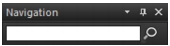
In the Navigation palette, type a search term in the Search box.
|
The search results appear in the Organizer palette. |
Search terms may be filenames (including extensions), names of folders in which images reside (including letters designating drives), tags, caption text, or image metadata (EXIF or IPTC data). |
 |
For more information about the tags that you can assign to
images, see Adding keyword tags to images. For more
information about caption text and image metadata, see
Displaying and editing photo information.
|
| To do an advanced search |
|
Manage workspace
1 |
In the Navigation palette, click the Collections tab.
|
2 |
Double-click Smart Collections to open the list, and click Add
Smart Collection.
|
The Smart Collection dialog box appears. |
3 |
In the Find photos that match drop-list, select one of the
following options:
|
• |
All — searches for images that match all of the specified rules
|
• |
Any — searches for images that match any of the specified rules
|
4 |
From the first drop-list on the left, select a search option.
|
5 |
From the next drop-list, select an option to refine the search
further.
|
The options that appear in the drop-list depend on the search option that you chose in the previous drop-list. |
6 |
In the text field, type or choose a search term.
|
The search term you type must correspond to the search option that you choose in the first drop-list of the search rule. For example, if you choose Image date, modify the month, date, and year displayed, or press the down arrow button and click a date on the calendar that appears. If you choose Rating, click the number of stars matching the rating assigned to the image. |
7 |
Click Preview.
|
The search results appear in the Organizer palette. |
 in the upper right of the dialog box.
 .
.
