Setting up the Manage workspace
When you start up Corel PaintShop Pro for the first time, the Manage workspace appears as your main workspace with the following four components: Navigation palette, Preview area, Organizer palette, and the Info palette. For information about each of these palettes, see The Manage workspace.
Depending on your specific needs, you can customize the Manage workspace by choosing the Preview or Thumbnail mode, resizing, moving, or hiding the palettes, and selecting display and file preferences. For more information, see Setting Manage workspace preferences.
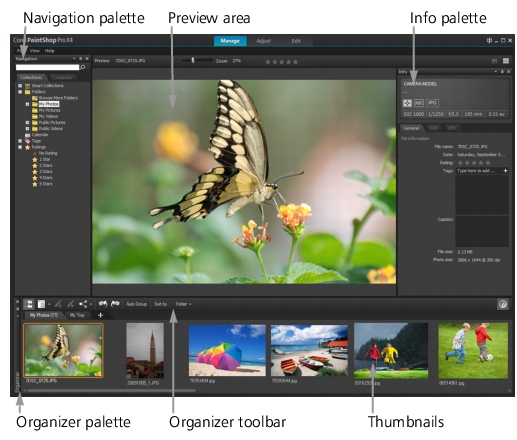
Manage workspace in Preview mode
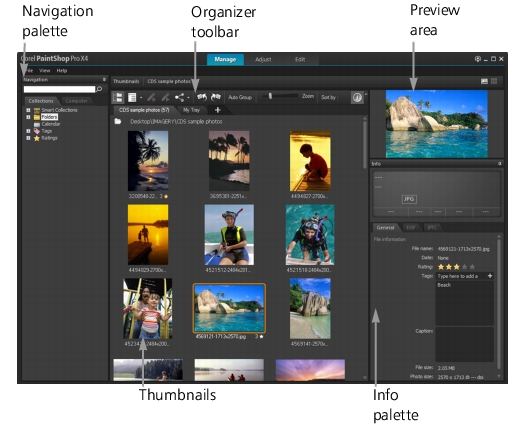
Manage workspace in Thumbnail mode
| To switch between preview and thumbnail modes |
 |
• |
In the top-right corner of the Manage workspace, click one of the
following buttons:
|
• |
Preview mode  — displays a large preview area of a single
image — displays a large preview area of a single
image
|
• |
Thumbnail mode  — expands and locks the Organizer
palette content in the preview area — expands and locks the Organizer
palette content in the preview area
|
| To resize the Manage workspace palettes |
|
Manage workspace
1 |
Position the pointer over the edge of the palette you want to
resize until the cursor changes its shape to a two-way arrow.
|
2 |
Click the edge of the panel, and drag to enlarge or shrink the
panel.
|
 |
When you customize the Manage workspace, the program
remembers the latest layout settings and automatically saves
them for your next session.
|
| To hide or show the Navigation palette and Info palette |
|
Manage workspace
• |
In the Organizer palette, click any of the following buttons on the
Organizer toolbar:
|
• |
Show/Hide Navigation  — shows or hides the Navigation
palette — shows or hides the Navigation
palette
|
• |
Show/Hide Info  — shows or hides the Info palette — shows or hides the Info palette
|
 |
A convenient way to minimize the Organizer palette (or any
palette) is to click the Auto Hide button  on the palette title
bar. For more information, see To roll up a toolbar or palette. on the palette title
bar. For more information, see To roll up a toolbar or palette.
|
