Exploring the workspaces
Corel PaintShop Pro consists of three workspaces:
• |
Manage
|
• |
Adjust
|
• |
Edit
|
Each workspace contains specific tools and controls to help you accomplish the task at hand quickly and efficiently.
You can save the workspaces, including all open images and their magnifications and screen positions, as well as positions and preferences of palettes, toolbars, dialog boxes, and windowsFor information about using custom workspaces, see Using custom workspaces.
The Manage workspace
When you open Corel PaintShop Pro, the Manage workspace appears as your default workspace.
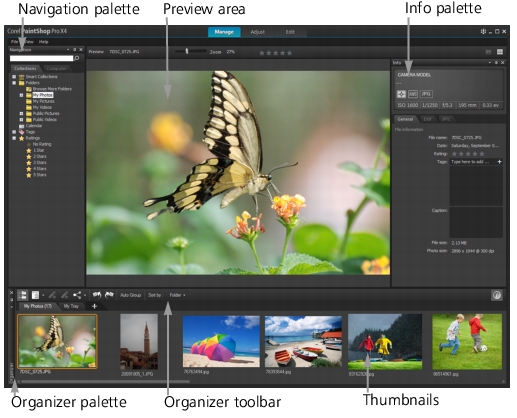
The Manage workspace in Preview mode
The Manage workspace consists of the following components:
• |
Navigation palette — helps you find and organize photos. You can
use the Search box or click the Collection tab or Computer tab to
display the folders on your computer or you can sort photos by
collection, tags, or ratings.
|
• |
Preview area — lets you choose between two views — a large
single-image view or a multi-thumbnail view (expanded Organizer
palette)
|
• |
Info palette — displays information about the selected image. It
consists of a camera-style display of the settings used to take the
photo and a tabbed area that lets you add information, such as
tags and ratings, and access a full list of EXIF or IPTC data.
|
• |
Organizer palette — Available in all three workspaces, this palette
lets you select photos (as thumbnails) and includes a toolbar with
a range of commands and options for managing photos.
|
For more information about the Manage workspace, see Reviewing, organizing, and finding photos.
The Adjust workspace
Adjust is your workspace for quick edits. It lets you fix and enhance your photos by offering a set of the most commonly-used tools.
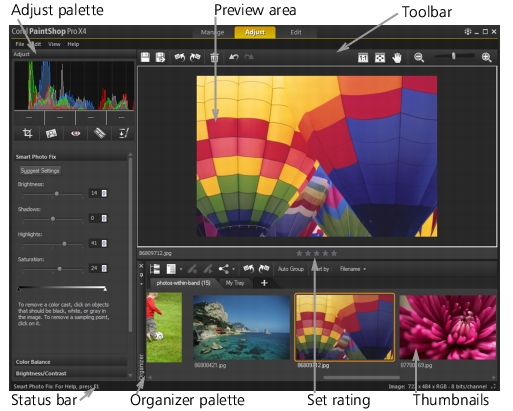
A photo displayed in the Adjust workspace
The Adjust workspace includes the following components:
• |
Preview area — displays the photo selected in the Organizer
palette
|
• |
Organizer palette — lets you select photos. It includes a toolbar
with a range of commands and options for managing photos.
|
• |
Set Rating control — lets you assign ratings to each photo, so that
you can quickly find your favorites
|
• |
Toolbar — displays buttons for accessing common saving and
viewing commands
|
• |
Adjust palette — displays tools and controls for adjusting photos
|
• |
Status bar — displays information about the selected tool
|
For more information about the Adjust workspace, see Using the Adjust workspace.
The Edit workspace
The Edit workspace lets you access in-depth editing features. It includes menus, tools, and palettes that you can use to create and edit images. In addition to photo editing, it lets you perform painting and drawing tasks.
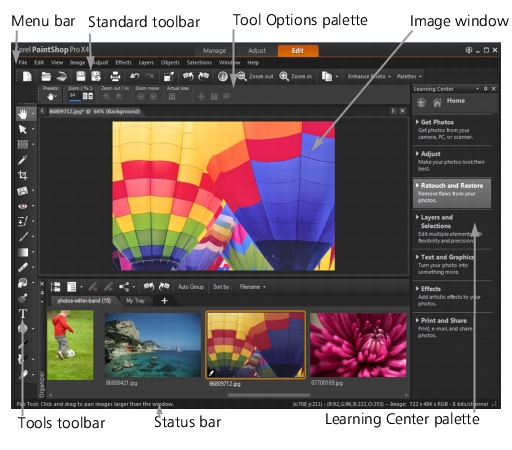
A photo displayed in the Edit workspace
The Edit workspace includes the following components:
• |
Menu bar — displays commands for performing tasks. For
example, the Effects menu contains commands for applying
effects to images.
|
• |
Toolbars — display buttons for common commands. For more
information, see Using toolbars.
|
• |
Palettes — display image information and help you select tools,
modify options, manage layers, select colors, and perform other
editing tasks. For more information, see Using palettes.
|
• |
Status bar — displays information about the selected tool or
menu command, as well as information about image dimensions,
color depth, and pointer position. The status bar appears at the
bottom of the workspace, and unlike other toolbars, it cannot be
customized or moved. For more information about viewing image
information, see Displaying and editing photo information.
|
