Adjust color and tone

To adjust color and tone automatically

To adjust the brightness, contrast, and intensity

To adjust the color balance

To apply the Gamma effect

To adjust hue, saturation, and lightness

To replace colors

To apply the Sample/target balance effect


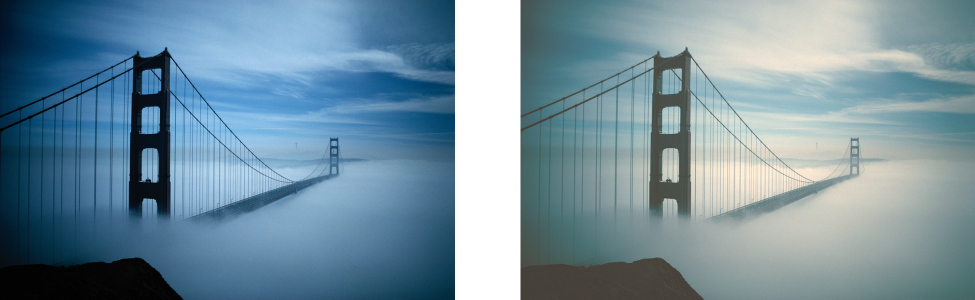
CorelDRAW lets you adjust the color and tone of bitmaps. For example, you can replace colors and adjust the brightness, lightness, and intensity of colors.

By adjusting tone and color, you can restore detail lost in shadows or highlights, remove color casts, correct underexposure or overexposure, and generally improve the quality of the bitmaps. You can also correct color and tone quickly by using the Image Adjustment Lab. For more information, see Image Adjustment Lab.

You can adjust the color and tone of bitmaps automatically by using the Auto Adjust command or by using the following filters.


The Replace colors filter lets you replace one or more colors in an image, selection, or object. A color mask is created to define the colors to be replaced. The application shows the color mask in the preview window so you can see the selected colors. The protected areas are black, and areas with colors that will be replaced are white. You can add colors to and subtract colors from the color mask to refine your selection. Depending on the range you set, you can replace one color or shift an entire image from one color range to another. The range sets the tolerance of the color mask. Color tolerance is based on color similarity and defines the percentage of color variation from the seed colors that is allowed in the mask. A greater tolerance value adds more colors to the color mask. You can set the hue, saturation, and lightness for the new color. Depending on the options you choose, you can replace one or more colors with a single color or with multiple colors.

By default, the application shows a live preview of the image in the document window as you change the settings in the filter dialog box. However, if you zoom in on the image in the document window to get a closer look at a specific area, but you still want to be able to evaluate the changes in the entire image, you can preview the image in the dialog box. For more information about previewing images in the dialog boxes of bitmap effects, see To apply a bitmap effect to an image area.

To adjust color and tone automatically Back to Top
To adjust the brightness, contrast, and intensity Back to Top

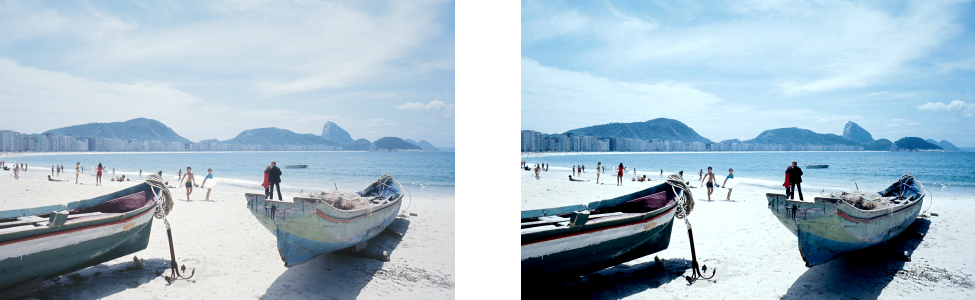
Adjusting the brightness, contrast, and intensity lets you improve the clarity and quality of the image.

*

Brightness shifts all pixel values up or down the tonal range, lightening or darkening all colors equally.

Contrast adjusts the difference between light and dark colors.

Intensity brightens the light areas of the drawing or darkens the dark areas.

Contrast and intensity usually go hand-in-hand because an increase in contrast sometimes washes out detail in shadows and highlights, and an increase in intensity can bring it back.

To adjust the color balance Back to Top


Enable the Shadows, Midtones, and Highlights check boxes, respectively.
Enable the Preserve luminance check box.
Move the Cyan-Red slider to the left or right, respectively.
Move the Magenta-Green slider to the left or right, respectively.
Move the Yellow-Blue slider to the left or right, respectively.

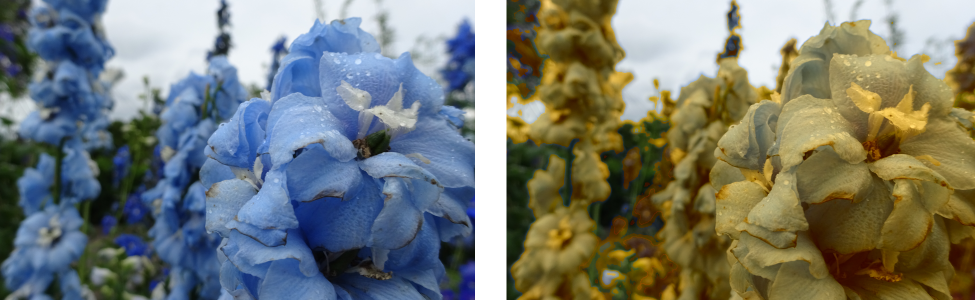
The Color balance effect has been used to shift the colors in the image from blue to yellow.

To apply the Gamma effect Back to Top

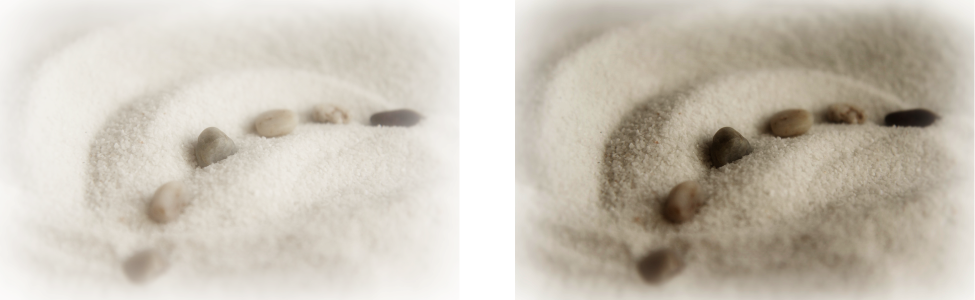
Adjusting the midtones lets you increase the detail in a low-contrast image without affecting the shadows or highlights.

To adjust hue, saturation, and lightness Back to Top


Enable the Master option in the Channels area.
Enable the Red, Yellow, Green, Cyan, Blue, Magenta, or Grayscale option in the Channels area.
Move the Hue slider to redistribute the colors in an image.
Move the Saturation slider. A setting of -100 results in a grayscale image. A setting of 100 produces vibrant, unnatural colors.
Se the amount of white (positive values) or black (negative values)
Move the Lightness slider.

Use the Hue/saturation/lightness effect to change the colors in an image.

To replace colors Back to Top


Click the Add colors to mask eyedropper tool and drag in the image to select the colors you want.
Click the Subtract colors from mask eyedropper tool and drag in the image to select the colors you want.
Move the Range slider.
Enable the Ignore grayscale check box.
Disabling the Ignore grayscale check box replaces gray pixels based on saturation and lightness values alone.
Enable the Single output color check box.
Move the Hue, Saturation, and Lightness sliders, respectively.

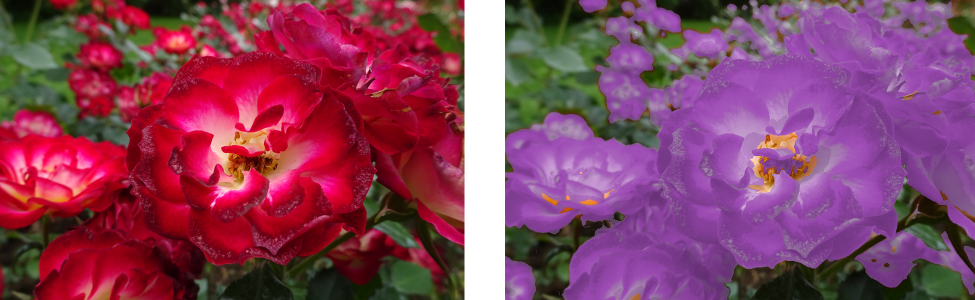
The Replace colors effect has been applied to replace all instances of the color red with purple.

*

To preview the image in the dialog box, click the Preview button . For more information about previewing images while adjusting settings, see To apply a bitmap effect to an object.

To apply the Replace colors filter non-destructively, use a lens. For information about using lenses, see Lenses.

*

When you copy the color mask from one bitmap object to another, all mask settings are preserved.

To apply the Sample/target balance effect Back to Top

The shadows, midtones, and highlights in the image have been adjusted by mapping a sample color in the bitmap to a target color.

*

Enable the Clip automatically check box to set the range of the histogram display and ensure that all spikes fit on the chart. When the Clip automatically check box is disabled, use the Clipping box to set the percentage of brightness values that are ignored when identifying the light and dark colors in the histogram.

The features documented in the Help are available in the full version of CorelDRAW Graphics Suite 2020. Some features may not be available in this version of the product.


Feedback
Was this page helpful? Send feedback. (Internet connection required.)