Once you apply a bitmap effect, it appears in the Properties docker. The FX tab in the Properties docker is the hub for non-destructive editing, allowing for quick adjustments and unlimited experimentation. You can show and hide special effects, edit applied effects, and apply multiple special effects to the same object. Plus, you can change the order of the applied special effects, and you can delete a special effect. Effects are cumulative; each time you apply an effect, it's stacked on top of the previous effect. On the FX tab, the effects appear in the order in which you apply them, with the most recently added effect at the top of the list. You can also flatten effects to apply changes permanently.
When you apply a bitmap effect to a bitmap object, CorelDRAW automatically adds a border around the bitmap so that the effect covers the entire image. Disabling the automatic inflate option cuts off the effect at the edges of the image. For example, if you apply the Gaussian Blur effect to a rectangle, the corners are cut off.
Adding plug-in filters to CorelDRAW provides additional features and effects that you can use to edit images. You can add plug-in filters, and you can remove them when you no longer need them.
You can apply multiple effects to a lens. Click the Add effect button on the FX tab of the Properties docker, and choose an effect from the menu. Repeat this step for each effect that you want to add. On the FX tab, the effects appear in the order in which you apply them, with the most recently added effect at the top of the list.
Clicking the Show/Hide icon on the FX tab of the Properties docker changes the visibility of individual effects, whereas clicking the Show/Hide Effects icon in the Objects docker changes the visibility of all effects applied to an object and overrides the visibility settings for individual effects that you may have set on the FX tab of the Properties docker.
You can also hide and show effects by clicking the Show/Hide Effects toggle icon in the Objects docker (WindowDockersObjects). To hide or show the effects of multiple objects, select the objects, and click the Show/Hide Effects toggle icon .
The features documented in the Help are available in the full version of CorelDRAW Graphics Suite 2020. Some features may not be available in this version of the product.
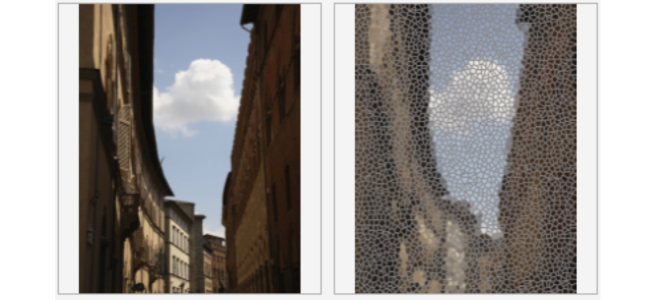
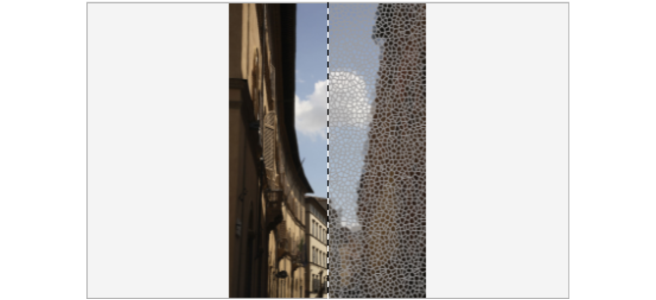
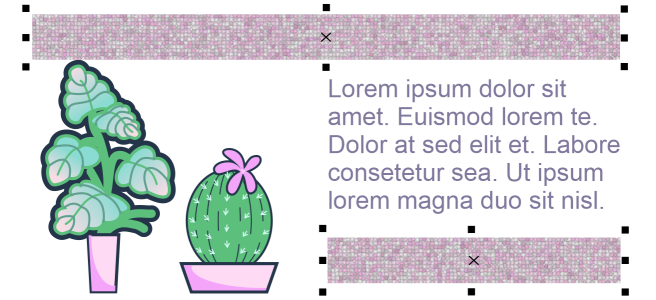
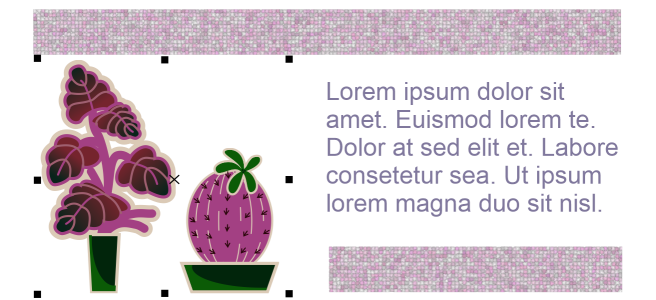


 , and perform a task from the following table.
 , drag the image until the area you want to see is visible.
 button.
 .
. .
. , and drag the split view divider in the center of the window to the left or right.
 Dockers
  , choose an effect category, and click an effect.
 in the Objects docker (Window
  appears in the Objects docker to the right of the object.
 for the effect you want to show or hide.
 .
. .
. in the Objects docker changes the visibility of all effects applied to an object and overrides the visibility settings for individual effects that you may have set on the FX tab of the Properties docker.
 or the Zoom out tool
  , click in the preview window.

