
To sign in the Comments docker
To view, select, and move comments
To add a note associated with a comment
Using the Comments docker, you can view and address any comments added to a document in context, and you can provide in-context feedback.
To work with the Comments docker, you must first sign in. You can sign in with your G Suite or Office 365 enterprise account, and you can also sign is as a guest. When you sign in with an enterprise account, your comments are authenticated. When you sign in as guest, you can type the name you want to be associated with your comments. However, your comments cannot be authenticated. If you switch from commenting as guest to commenting with your enterprise account, all comments you made as a guest before will still be identified as guest ones.
After signing in, you can select, respond to, and resolve comments as well as reopen resolved comments. You can add a note icon, and then type a comment in the Comments docker, or you can mark up the document with arrows, rectangles, ellipses as well as straight and free-form lines. To draw attention to a specific area in a document, you can highlight it as if you were using a highlighter on paper. You can add a comment to clarify each markup you draw. If you want to add custom shapes and lines; you must set their properties, such as fill color, line thickness, and outline width, before you start drawing in the document. You can move any comment mark added to the drawing window; and you can resize arrows, shapes, and lines.
You can also co-author and co-edit text. For more information, see Collaborate on text.
| To sign in the Comments docker |

|
| 1 . | Click Window  Dockers Comments. Dockers Comments. |
The Sign-in page appears when you access the Comments docker for the first time. If you have already signed in but you want to switch accounts, click the Switch accounts button  in the Comments docker. in the Comments docker. |
| 2 . | Perform a task from the following table. |
|
Click Sign in with G Suite, and provide the required credentials.
|
|
|
Click Sign in with Office 365, and provide the required credentials.
|
|
|
Click Continue As Guest. Type your email address and name.
|
| To view, select, and move comments |
|
| 1 . | Open a document that has comments and markup. |
| 2 . | Perform a task from the following table. |
|
Using the Pick tool
 , point to the comment mark in the drawing window. A tooltip is displayed, showing the author, the comment, and the number of replies to the comment. , point to the comment mark in the drawing window. A tooltip is displayed, showing the author, the comment, and the number of replies to the comment. |
|
|
Using the Pick tool
, click the comment mark in the drawing window.Tip: You can also click the comment in the Comments docker.
|
|
|
Holding down Ctrl, click the comments in the Comments docker, or click the comment marks in the drawing window with the Pick tool.
Tip: You can also select multiple consecutive comments by holding down Shift and clicking the first and the last comment in the sequence in the Comments docker.
|
|
|
Using the Pick tool
, click the comment mark and drag it to a new position in the drawing window. |
| To respond to comments |
|
| 1 . | In CorelDRAW, click File Open from Corel Cloud, and double-click the file you want to open. |
| If the file is saved to another location, find it and open it from there. |
| 2 . | Click Window Dockers Comments. |
| 3 . | Perform a task from the following table. |
|
Click the Resolve button
 in the upper-right corner of the comment box. in the upper-right corner of the comment box.Note: If you haven’t changed the default display settings for resolved comments, the comment mark and the comment disappear as soon as you resolve the comment. For information about showing and hiding resolved comments, see To hide and show comments.
Tip: You can also click the Actions button
 , and click Resolve. , and click Resolve. |
|
|
Click the Options button
 , and click Resolve All. , and click Resolve All. |
|
|
Click the Actions button
to the right of the comment, and click Reopen. |
| To add a note associated with a comment |
|
| 1 . | In the Comments docker, click the Note tool  . . |
| 2 . | Click where you want to add the note icon in the drawing window. |
| 3 . | Type a comment in the Comments docker, and press Enter. |
To add the same note on all document pages, you must first select the Master page in the Objects docker, and then click the Desktop layer.
You can cancel the comment you are typing by pressing Esc.
| To use drawing markup tools |
|
| 1 . | In the Comments docker, perform a task from the following table: |
|
Click the Arrow Markup tool
 . In the drawing window, drag to draw the arrow. To add an arrowhead at the start point, enable the Start arrow check box. . In the drawing window, drag to draw the arrow. To add an arrowhead at the start point, enable the Start arrow check box. To draw a straight line, disable the Start arrow check box and the End arrow check box. Point to where you want to start the line, and drag to draw the line.
You can choose the color of arrows and lines from the Line color picker before you start drawing.
You can specify the width of arrows and lines by typing a value in the Line width box before you start drawing.
|
|
|
Click the Highlighter tool
 , and drag across the area you want to highlight. , and drag across the area you want to highlight.You can choose the color of highlights from the Highlight color picker before you start drawing.
You can specify the width of highlights in the Highlight width box before you start drawing.
|
|
|
Click the Freehand Markup tool
 , point to where you want to start, and drag in the drawing window. , point to where you want to start, and drag in the drawing window.You can choose the color of lines from the Line color picker before you start drawing.
You can specify the width of lines in the Line width box before you start drawing.
|
|
|
Click the Rectangle Markup tool
 , and drag in the drawing window. , and drag in the drawing window.You can choose the color of the outline from the Outline color picker before you start drawing.
You can specify the width of the outline in the Outline width box before you start drawing.
|
|
|
Click the Ellipse Markup tool
 , and drag in the drawing window. , and drag in the drawing window.You can choose the color of the outline from the Outline color picker before you start drawing.
You can specify the width of the outline in the Outline width box before you start drawing.
|
|
|
Select the Rectangle Markup tool
or Ellipse Markup tool , choose a fill color from the Fill color picker, and then drag in the drawing window. |
| 2 . | Type a comment in the Comments docker, and press Enter. |
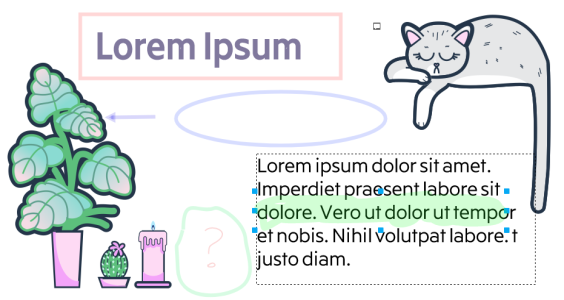
50% transparency is applied to the colors of the markup.
| To resize comment marks |
|
| 1 . | Using the Pick tool , click a comment mark such as a line, highlight, rectangle, an arrow or an ellipse in the drawing window. |
| 2 . | Drag a selection handle. |
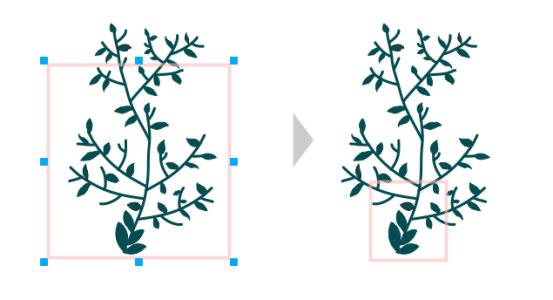
The rectangle was resized to focus on a specific area of the design.
| To edit your comments |
|
| 1 . | In the Comments docker, click a comment that you have added, click the Actions button , and then click Edit. |
| 2 . | Edit the comment, and press Enter. |
You can edit only your own comments.
| To undo and redo actions related to comments |
|
| • | In the Comments docker, perform a task from the following table. |
|
Click the Undo button
 . . |
|
|
Click the Redo button
 . . |
| To hide and show comments |
|
| 1 . | Click the Pick tool . |
| 2 . | In the Comments docker, click the Options button , and perform a task from the following table. |
|
Click Show Annotations to disable or enable the command.
|
|
|
Click Show Resolved to disable or enable the command.
|
| To delete comments |
|
| • | In the Comments docker, perform a task from the following table. |
|
Click the comment, and press Delete.
Tip: You can also click the Actions button
, and click Delete. |
|
|
Click the Options button
, and click Delete All. |
To delete a comment, you can also select the comment mark in the drawing window by using the Pick tool , and press Delete.
| To save and share a file |
|
| 1 . | In the Comments docker, click the Save and share button  . . |
| 2 . | In the dialog box that appears, type a file name. |
| 3 . | Click one of the following buttons: |
| • | Save — saves the file and uploads it to Corel Cloud |
| • | Save and Share — saves the file, uploads it to Corel Cloud, and opens it in CorelDRAW.app so that you can share it with others |

The features documented in the Help are available in the full version of CorelDRAW Graphics Suite 2020. Some features may not be available in this version of the product.


