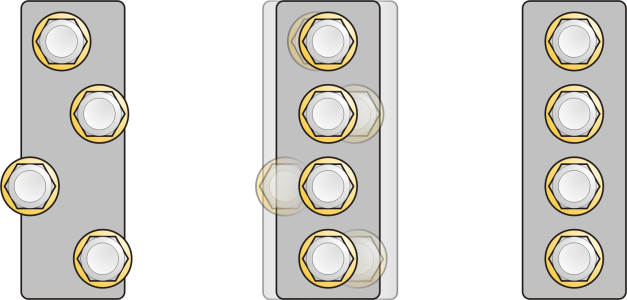
Corel DESIGNER lets you precisely align and distribute objects in a drawing. You can instantly view the effect of changes as you modify the options in the Align and distribute docker. By default, objects are aligned and distributed based on their paths. You can also align and distribute objects from the edge of their outlines.
You can align objects to each other or to parts of the drawing page such as the center, edges, and grid. When you align objects to objects, you can line them up by their centers or by their edges. You can also align objects with a reference point by specifying its exact x and y coordinates.
Corel DESIGNER lets you align multiple objects to the center of the drawing page horizontally or vertically.
You can distribute objects at equal intervals in a specified area.
Example of aligning objects to each one’s center
Often in technical illustration, you may need to align the minor axis of an ellipse to a line, with the major axis meeting the line at a 90° angle. For information about how to do this, see To align an ellipse to a line.
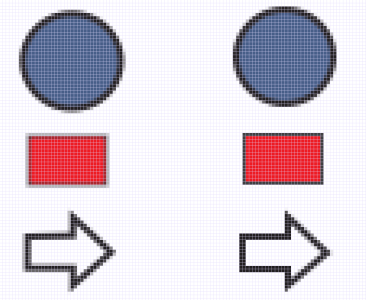
To prevent blurry edges in objects designed for web use, you can align the objects with the pixel grid. This feature realigns the nodes or edges of the object to position them correctly on the pixel grid.
Align objects with the pixel grid to prevent blurry edges.
| 2 . |
Click Object  Align and distribute Align and distribute. Align and distribute Align and distribute. |
| 3 . |
In the Align area of the docker, click one of the following buttons to use an object edge or center for aligning. |
|
• |
Align top  — to align the top edges of objects — to align the top edges of objects |
| 4 . |
In the Align objects to area, perform any of the following tasks. |
|
|
|
|
|
Click the Active objects button  .
|
|
|
Click the Page edge button  .
|
|
|
Click the Page center button  .
|
|
|
Click the Grid button  .
|
|
|
Click the Specified point button  , and type values in the Specify coordinates boxes.
|
|
|
In the Text area, choose one of the following options:
|

You can also align objects with another object quickly, without using the Align and distribute docker, by clicking Object Align and distribute and clicking any of the first six alignment commands. The letter next to a command name indicates the keyboard shortcut that you can use to align objects. For example, the letter L next to the Align left command shows that you can press L to align objects with the leftmost point of the object that is used as a reference point.
You can use snapping to precisely specify the alignment point. For more information, see Work with precision.
| 2 . |
Click Object Align and distribute Align and distribute. |
|
• |
Distribute center horizontally  — evenly spaces the center points of the objects along a horizontal axis — evenly spaces the center points of the objects along a horizontal axis |
|
• |
Distribute center vertically  — evenly spaces the center points of the objects along a vertical axis — evenly spaces the center points of the objects along a vertical axis |
|
• |
Extent of selection  — distributes the objects over the area of the bounding box surrounding them — distributes the objects over the area of the bounding box surrounding them |
| 2 . |
Click Object Align and Distribute Align and Distribute. |
| 3 . |
Click Align with Pixel Grid. |

The Align with Pixel Grid feature works with basic curves and shapes. It is unavailable for complex objects and effects such as symbols, text, symmetry groups, vector effects, and PowerClip objects.

 — to align the left edges of objects
 — to align object centers along a vertical axis
 — to align the right edges of objects
 — to align object centers along a horizontal axis
 — to align the bottom edges of objects
 .
. — evenly spaces the left edges of the objects
 — evenly spaces the right edges of the objects
 — places equal intervals between the objects along a horizontal axis
 — evenly spaces the top edges of the objects
 — evenly spaces the bottom edges of the objects
 — places equal intervals between the objects along a vertical axis
 — distributes the objects over the drawing page
