Symbols are created from objects. When you convert an object to a symbol, the new symbol is added to the Symbols docker, and the selected object becomes an instance. You can also create a symbol from multiple objects. Most objects in Corel DESIGNER can be converted to symbols, with some exceptions. For more information, see Unsupported object types .
The symbols that you create in a drawing are saved with the Corel DESIGNER (DES) file. In addition, you can create symbol libraries, which contain symbols that can be shared between drawings. For more information, see Symbol collections and libraries .
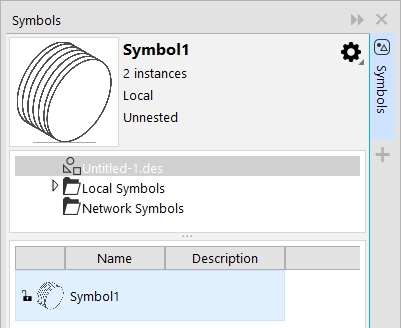
You can access a new symbol by selecting the document (Untitled-1) in the Symbols docker.
You can edit a local symbol; any changes you make affect all symbol instances in the drawing. The selection handles for symbol instances differ from those for objects. Selection handles for symbols are blue; selection handles for objects are black.
When you insert a symbol from an external library, a copy of the symbol is added to the active drawing, but it remains linked to the source symbol. You can edit a linked symbol or you can decide to break the link to the external library and make the symbol internal. When the link is broken, the local copy of the symbol remains in the drawing as an internal symbol, and it can be edited independently from the symbol in the external library.
If a nested symbol To edit a local symbol.
You can delete a symbol. When you delete a symbol that is used in a document, all instances of the symbol are removed from the document. You can also delete all symbols that are stored in the document library but are not used in the document.
2 .
Click Object Symbol New symbol .
Symbols cannot span layers. If you convert objects on different layers to a symbol, the objects are combined on the topmost object’s layer. For more information about layers, see Layers.
You can also convert an existing object or objects to a symbol by dragging the object or objects to the Symbols docker. The symbol name is automatically added.
1 .
In the Symbols docker, click the active document, and choose a symbol Symbols list.
4 .
Click Finish in the top-left corner of the drawing window.
Changes made to a symbol are automatically made to all instances in the active drawing.
While working in symbol edit mode, you cannot add layers or save a drawing.
To edit a linked symbol, click File Open . Choose the drive and folder of the library that contains the symbol that you want to modify. Click a library (.csl) filename, and click Open . The symbol appears in the Symbols docker, and it can be selected and edited like any other symbol. You may need permission to change files on the network. Also, you cannot edit the symbols that are installed with the application.
2 .
Click Object Symbol Break link .
If the external definition of the symbol instance contains styles, those styles are added to the document. If the styles in the symbol instance differ from those in its external definition, you are prompted to rename the style or merge the two styles. You can check for conflicting styles in the Links and bookmarks docker. An exclamation mark appears next to objects
You can also make a linked symbol local by right-clicking the symbol and choosing Break link .
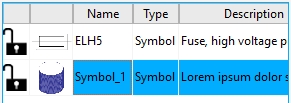
In the Symbols list, local symbols appear with open-lock icons that show they can be edited and renamed within the drawing.
1 .
In the Symbols docker, click the active document, and choose a symbol Symbols list.
When you delete a symbol, it is removed from the active drawing, and all instances of the symbol are removed from the drawing.
If the symbol is linked, its symbol definition is removed from the active document but remains in the library
1 .
In the Symbols docker, click the name of the active document.
2 .
Click the Options button Delete unused symbols .
This site works best with JavaScript enabled

 Symbol
  .
.
 .
. , and choose Delete unused symbols.

