
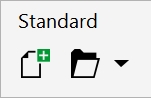
To customize toolbar position and display
To add, delete, or rename a custom toolbar
To add, remove, and position an item on a toolbar
When moving, docking, and undocking toolbars, you use the grab area of the toolbar.
|
|
||
|
|
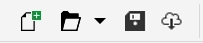
| To customize toolbar position and display |

|
|
Click Tools
 Options Customization. Click Command Bars, and disable or enable the check box next to the toolbar name. Options Customization. Click Command Bars, and disable or enable the check box next to the toolbar name. |
|
Docked toolbars cannot be moved when they are locked. For information about unlocking toolbars, see To lock or unlock toolbars.
| To add, delete, or rename a custom toolbar |
|
|
Click Tools
Options Customization. Click Command Bars, click New, and type a name in the Command bars list. Close the dialog box. Holding down Alt + Ctrl, drag a tool or button in the application window to the new toolbar.You can also drag commands from the Commands list in the Options dialog box.
|
|
|
Click Tools
Options Customization. Click Command Bars, click the custom toolbar name to select it, and then click it one more time to enter edit mode. Type a new name. |
| To add, remove, and position an item on a toolbar |
|
| 1 . | Click Tools Options Customization. |
| 2 . | In the left pane of the Options dialog box, click Commands. |
| 3 . | Choose a command category from the top list box. |
| 4 . | Drag a toolbar item from the list to a toolbar in the application window. |
| If you want to remove an item from a toolbar, drag the toolbar item off the toolbar. |
| 5 . | On the toolbar in the application window, drag the toolbar item to a new position. |
| If you want to move a toolbar item to another toolbar, drag the toolbar item icon from one toolbar to the other. |
You can copy a toolbar item to another toolbar by holding down Ctrl while dragging a toolbar item. If the Options dialog box is not open, you must hold down Alt+Ctrl.
| To modify toolbar appearance |
|
| 1 . | Click Tools Options Customization. |
| 2 . | In the left pane of the Options dialog box, click Command Bars. |
| 3 . | To change the button size on all toolbars, choose a size from the Global button size list box. |
| 4 . | Click a toolbar name in the list. |
| 5 . | Choose a button size from the Size list box in the Button properties area. |
| 6 . | From the Style list box in the Button properties area, choose one of the following: |
| • | Default |
| • | Image Only |
| • | Caption Only |
| • | Caption to Right of Image |
| If you want to hide the title when the toolbar is floating, disable the Show title when toolbar is floating check box. |
You can reset a built-in toolbar to its default settings by clicking Reset.
You can lock all toolbars by enabling the Lock toolbars check box.
| To replace a toolbar button image |
|
| 1 . | Click Tools Options Customization. |
| 2 . | In the left pane of the Options dialog box, click Commands. |
| 3 . | Choose a command category from the top list box. |
| 4 . | Click a toolbar command. |
| 5 . | Click the General tab. |
| 6 . | In the Icon area, click Browse, and navigate to the icon you want to use. |
The image you want to use must have an .ico extension.
You can reset toolbar button images to the default settings by clicking Restore Defaults.
| To lock or unlock toolbars |
|
| • | Click View Toolbars Lock toolbars. |
| The Lock toolbars command is enabled when a check mark appears beside it. When you launch the application for the first time, the toolbars are locked by default. |
Floating toolbars cannot be locked.
You can also lock or unlock toolbars by right-clicking a toolbar and clicking Lock toolbars.


