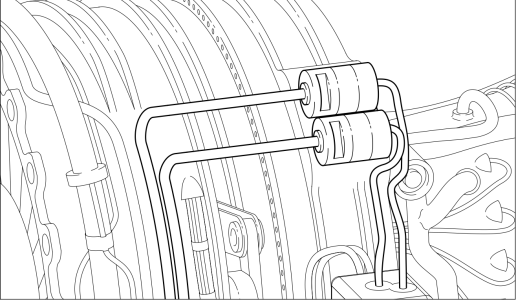
New! Thick and thin line drawing
Use the new Thick and thin line drawing mode to add depth and detail to your technical illustrations in no time. Corel DESIGNER automatically splits the shapes you draw and edit in projected view and applies thick and thin line styles to their outlines, making it easy and quick to add visual depth to an illustration. You can customize line widths and quickly swap thick lines with thin ones, and vice versa. For more information, see Thick and thin line drawing.
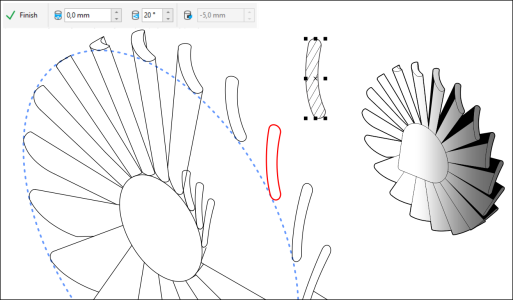
New! Wrap objects to cylinders and ellipses
Corel DESIGNER lets you wrap an existing object to a cylinder or an ellipse with a click, projecting it on the plane of the cylinder or ellipse with precision. Adjust the position of the wrapped object by specifying values for greater precision or dragging it around the cylinder or ellipse. With the new Wrap feature, complex tasks such as applying labels, creating hollow-looking objects, or adding extruded elements are now fast and easy to complete. For more information, see Wrap objects to cylinders and ellipses.
New! Apply hotspots to callouts
Automatically apply hotspots upon or after drawing callouts, a huge time-saver for technical drawings exported to CGM. With the new Callout options, a default set of object data can be added to callouts. Plus, you can customize the default object data fields and values. For more information, see Add hotspots to callouts.
Enhanced! Find and Replace docker
The redesigned Find and Replace docker offers an expanded search range so you don’t have to do multiple sweeps in the same file. There are also powerful new time-saving options for simultaneously finding and replacing the color or color model of an outline or fill, including mesh fills. For more information, see Find and replace colors and Find and replace objects.
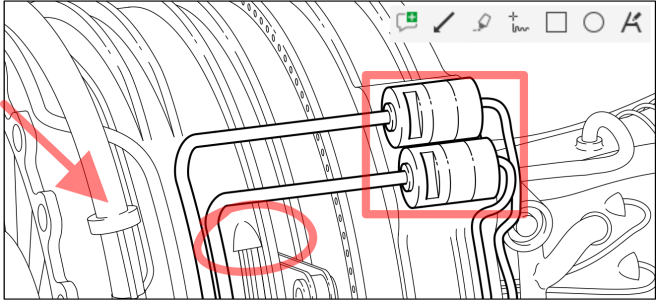
New! Collaboration workflow and annotation tools*
A new workflow makes collaborating with colleagues and clients easier than ever. Using new collaboration features in Corel DESIGNER 2020 in tandem with CorelDRAW.app and Corel Cloud, teams can easily review designs, and feedback can be implemented faster. For more information, see Collaboration workflow.
The Annotation tools in the new Comments docker empower teamwork and help stakeholders work collectively. You can add a note icon, mark up a document with arrows, rectangles, ellipses as well as straight and free-form lines. Then, add a comment to clarify each markup. Plus, the Comments docker acts as your collaboration hub, where you can view, respond to, and resolve feedback. This also means no more marked-up PDFs or image files, saving you time and screen space. For more information, see Review and provide feedback.
New! Inner shadows
You can apply inner shadows to design elements to give them 3D depth. The new Inner Shadow tool lets you simulate light falling on an object in a click and then fine-tune the inner shadow with intuitive property bar controls. For more information, see Add drop shadows and inner shadows.

Enhanced! PowerClip objects
Enhanced! Options navigation
It’s quicker and easier than ever to tailor your design environment to best suit the way you work. In just a click, you can switch between options for the entire suite, the active application, or the current document, as well as settings for the default behavior of commonly used tools. For more information, see Choose options.
Enhanced! Lens performance
Enhanced! Perspective and Radial Blur effects
The Radial Blur and Perspective effect are smoother and more responsive.
Enhanced! Startup time
Enhanced! Dialog box UI
