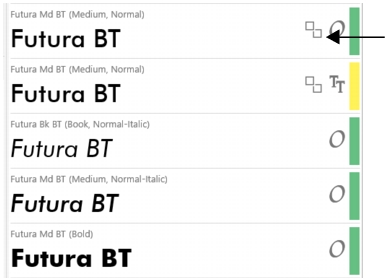
Your folders or collections may contain duplicate versions of the same font. For example, you can have two identical fonts that vary only by version. Duplicate fonts are identified with a badge.
By default, the Preview pane shows only one font for each group of duplicate fonts. For example, when a font is installed and has duplicates that are not installed, only the installed version is shown. However, you can show all duplicate fonts, and then delete the versions you do not need. For information about how to delete a font, see To delete a font.
Only one duplicate version can be installed at a time for each group of duplicate fonts.
This example shows two duplicate fonts. The badge in the upper-right corner of each font shows the font is a duplicate.
To display only the duplicate fonts in a folder or collection, you can apply the Duplicates filter from the Font Status filter category.
| 2 . |
Click the Show duplicate fonts button on the toolbar. |
| 2 . |
In the Font Filters area, enable the Duplicates check box. |

The features documented in the Help are available in the full version of CorelDRAW Graphics Suite 2019. Some features may not be available in this version of the product.