Quick links to procedures on this page:
• |
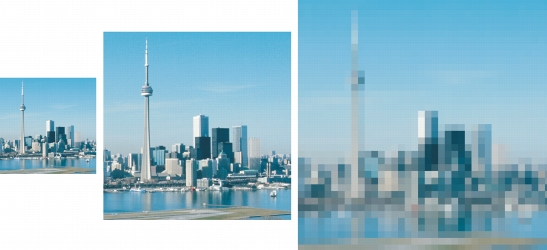
You can change the physical dimensions of images by increasing or decreasing their height and width. When you increase image dimensions, the application inserts new pixels between existing pixels, and their colors are based on the colors of adjacent pixels. If you increase image dimensions significantly, images may appear stretched and pixelated.
The size of the image on your screen depends on the pixel height and width of the image, on the zoom level, and on your monitor settings. As a result, an image may display as a different size on your screen than when it is printed.
You can change the height and width of an image without changing the resolution. Left to right: image with smaller dimensions, original image, image with larger dimensions.
| To change the dimensions of an image |  |
1 |
Click Image  Resample. Resample.
|
2 |
Enable any of the following check boxes:
|
• |
Anti-alias — smooths the edges in the image
|
• |
Maintain aspect ratio — avoids distortion by maintaining the width-to-height
ratio of the image
|
3 |
In the Image size area, type values in one of the following pairs of boxes:
|
• |
Width and Height — let you specify the image dimensions
|
• |
Width % and Height % — let you resize the image to a percentage of its
original size
|
 |
When you change the dimensions of an image, you produce better results using
width and height values that are factors of the original values. For example,
reducing image size by 50% produces a better-looking image than reducing
image size by 77%. When reducing an image by 50%, the application removes
every other pixel; to reduce an image by 77%, the application must remove
pixels irregularly.
|

|
Copyright 2010 Corel Corporation. All rights reserved.