Quick links to procedures on this page:
The painting space is a virtual box-shaped space that corresponds to the page in Corel Painter Freestyle. The air gestures that you make in this space are simultaneously translated into brushstrokes onto the page.
When you first open Corel Painter Freestyle, a painting space is set by default so you can quickly get started with painting. However, you can also resize or customize the painting space to best match your air gesture style and monitor size. For example, if you prefer making broad sweeping strokes, choose a bigger painting space.
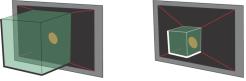
Increase (left) or decrease (right) the size of painting space to best match your air gesture style and monitor size.
There is also an area between you and the painting space called the hover zone, which allows you to move the cursor across the page without applying brushstrokes. The brush cursor color changes to reflect the space that you’re in: it displays as blue in the painting space and as orange in the hover zone. Moving in the hover zone is similar to moving a mouse across a mousepad. However, you can use hovering air gestures in this zone to select tools and options. For example, you can hover your finger over a brush button to select it. You can also undo brushstrokes in the hover zone. For more information, see Undoing and redoing brushstrokes.
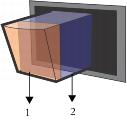
The hover zone (1) is an area that is adjacent to the painting space (2) which allows you to move freely across the page and make selections.
You also have the option of using the Leap Motion screen location, instead of using the painting space. For more information, see Using Screen Locator mode.
|
2
|
In the Painting Space area, choose a preset size option from the Preset list box. |
|
2
|
In the Painting Space area, adjust any of the following sliders: |
|
• |
Width — sets the width (in millimeters) of the drawing space |
|
• |
Height — sets the height (in millimeters) of the drawing space |
|
• |
Distance Above Controller — sets the distance (in millimeters) between the Leap Motion controller and the bottom edge of the painting space |
|
3
|
In the Painting Space Depth area, adjust any of the following sliders: |
|
• |
Minimum Depth — sets where the depth (in millimeters) of the painting space starts (the edge that is farthest from you) |
|
• |
Maximum Depth — sets where the depth (in millimeters) of the painting space finishes (the edge that is closest to you) |
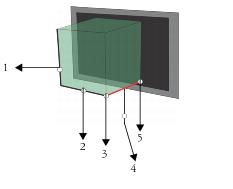
Adjusting the size of the painting space: 1) Height, 2) Width, 3) Maximum Depth, 4) Distance Above Controller, and 5) Minimum Depth

You can save custom painting spaces by clicking the Add button  in the Advanced panel, typing a name in the Preset Name text box, and clicking Save.
You can delete a previously saved painting space by choosing the name of the painting space from the Preset list box and pressing the Delete button  .
.

The custom painting space must fit within Leap Motion’s cone of vision, or the painting space may be unusable. For more information, see Setting up the Leap Motion controller.
Copyright 2013 Corel Corporation. All rights reserved.

 Advanced.