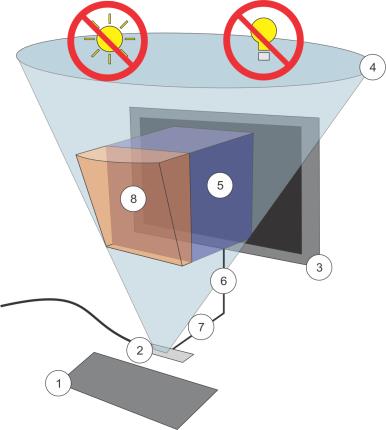
| • | To setup the Leap Motion controller for painting |
Tips for working with Leap Motion
To ensure Leap Motion’s ability to successfully capture all air gestures, follow these tips:
| • | Make sure the lighting in the room is not too bright or too dim. For example, the Leap Motion controller may be unable to detect air gestures if you are in direct sunlight. |
| • | Remove any watches or jewelry, such as bracelets. These objects may cause reflections that interfere with the Leap Motion controller. |
| • | Wear a shirt that has form-fitting sleeves. For example, the movement of a flowing sleeve may be captured as an unintended air gesture. |
| • | Limit your movements to the painting space. Any movements that you make outside of the painting space will go undetected by the controller. |
| To setup the Leap Motion controller for painting |

|
| 1 | Install the Leap Motion controller according to the manufacturer’s instructions. |
| 2 | Place the Leap Motion controller facing up on a flat surface, such as a desk or table, approximately eight inches from and below your monitor. |
If you’re using a laptop, the same eight inch distance applies. Therefore, you may need to elevate the laptop so that the Leap Motion controller is positioned eight inches below it. You may also want to choose a smaller-sized painting space to better match the laptop screen size. For more information, see To quickly resize the painting space.
Copyright 2013 Corel Corporation. All rights reserved.
