| • | To choose a brush |
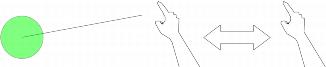
| • | To resize a brush |
A circle appears onscreen in the document window that lets you size the brush.
The Corel Painter Freestyle brushes are designed for single-stroke or multi-stroke air gestures. You can perform single-stroke air gesture by using one finger at a time and multi-stroke air gestures by using two or more fingers at a time. For more information, see Applying brushstrokes by using air gestures. The table below lists all of the brushes and their stroke type:
| To choose a brush |

|
| 1 | Swipe a finger diagonally from the lower-left corner of the painting space toward the upper-right corner. |
| The Brushes and Papers panel opens. |
| 2 | In the Brushes and Papers panel, hover your finger over a brush icon until it is selected. |
You can also open the Brushes and Papers panel by hovering over the Current Brush button  on the toolbox until it is selected.
| To resize a brush |
|
| 1 | Hover your finger over the Brush Resize button  on the toolbox until it is selected. on the toolbox until it is selected. |
| A circle appears in the document window. |
| 2 | Move your finger to the right or left in the painting space. |
| 3 | When you achieve the desired size, hover your finger until the size is selected. |
|
Hold your finger in the hover zone, and then hold down [ until the resizing is complete
|
|
|
Hold your finger in the hover zone, and then hold down ] until the resizing is complete
|
You can also resize a brush by holding down Shift on the keyboard with one hand, and moving your finger to the right or left in the painting space with your other hand. When you achieve the desired size, hover your finger until the size is selected.
Copyright 2013 Corel Corporation. All rights reserved.
 Sargent
 Oil Brush
 Chalk
Chalk Ink
Ink Oil Bristle
 Fractal
 Eraser
 Blender
 Smudge
 Airbrush
 Line Spray
 Graffiti
 Ribbon
 Geo Pencil
 Fractal Roller