Quick links to procedures on this page:
You can apply brushstrokes to the page by making stroking air gestures with one finger, multiple fingers, or an object. If you use an object, we recommend using an object with a non-reflective surface, such as a chopstick or drumstick.
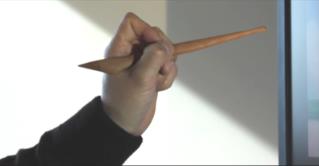
You can make gestures by using an object, such as a chopstick.
You can produce different effects by varying the speed and direction of your strokes. For example, you can apply broad sweeping movements, short quick swipes, or circular motions.
Single-stroke and multi-stroke air gestures
By default, Corel Painter Freestyle brushes are set for single-stroke air gesture application, by using only one finger at a time, or multi-stroke air gestures, by using two or more fingers simultaneously. For a list of brushes and their strokes types, see Choosing and resizing brushes. However, you can transform any single-stroke brush into a multi-stroke brush.

Multi-stroke air gestures allow you to apply multiple strokes simultaneously.
Other brush properties
You can modify additional brush properties to produce different effects. For example, the Fractal brush produces a single-brushstroke, however, you can increase the width of the stroke by using two-finger air gestures. You can also set the minimum and maximum distances between fingers to ensure more consistent multi-stroke brushstrokes.
You can also create connected brushstrokes, which draws a continuous connection between the strokes. The Geo Pencil brush type produces connected strokes by default, but you can apply the connected brushstrokes settings to any brush that is set to multi-stroke.
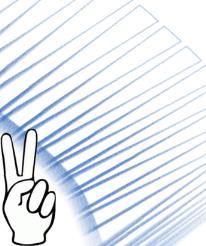
Painting connected strokes using the Geo Pencil.
Tilt
A few Corel Painter Freestyle brushes, such as the Airbrush, respond to the angle, or tilt, of your hand when painting. Tilting causes the Airbrush to spray specks of paint in a way that reflects the angle of your hand. Using tilting gestures, however, may cause hand or wrist fatigue. Therefore, you can decrease the tilting zone, which represents the range of motion required to achieve tilting effects. For example, a minimum tilt angle set to 40 and a maximum tilt set to 50 would limit the range of motion. A 10 degree tilt of your finger would translate into a 90 degree tilt in Corel Painter Freestyle.
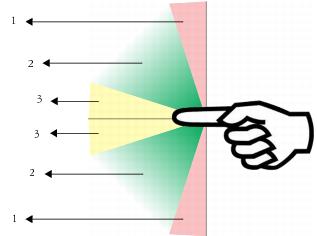
In the image, the green area (2) represents the tilting zone. The pink area (1) represents the minimum tilt and the yellow area (3) represents the maximum tilt. Air gestures are detected only in the green area (2).
|
The Brushes and Papers panel opens. |
|
2
|
In the Brushes and Papers panel, hover your finger over a single-stroke brush icon until it is selected. |
|
4
|
In the Brush Mode area, enable the Enable Multiple Strokes check box. |

If you modify brush properties in the Advanced panel, these properties become the new default properties for the selected brush type. However, you can reset the factory default settings to restore all brush properties, For more information, see Restoring default settings.
|
2
|
In the Distance Between Fingers area, adjust the following sliders: |
If you modify brush properties in the Advanced panel, these properties become the new default properties for the selected brush type. However, you can reset the factory default settings to restore all brush properties, For more information, see Restoring default settings.
|
2
|
In the Brush Mode area, enable one of the following options: |
If you modify brush properties in the Advanced panel, these properties become the new default properties for the selected brush type. However, you can reset the factory default settings to restore all brush properties, For more information, see Restoring default settings.
|
2
|
In the Tilt Control area, adjust the following sliders: |
|
• |
Minimum Tilt — sets the angle at which the tilting zone starts |
|
• |
Maximum Tilt — sets the angle at which the tilting zone finishes |
If you modify brush properties in the Advanced panel, these properties become the new default properties for the selected brush type. However, you can reset the factory default settings to restore all brush properties, For more information, see Restoring default settings.
Copyright 2013 Corel Corporation. All rights reserved.

 Advanced.