Placing files
When you place a file in an existing Corel Painter document, the placed image becomes a new reference layer in the document — you can transform (resize, rotate, or slant) it on-screen by dragging its handles. A placed file maintains its link to the source file until you commit it to the standard layer format.
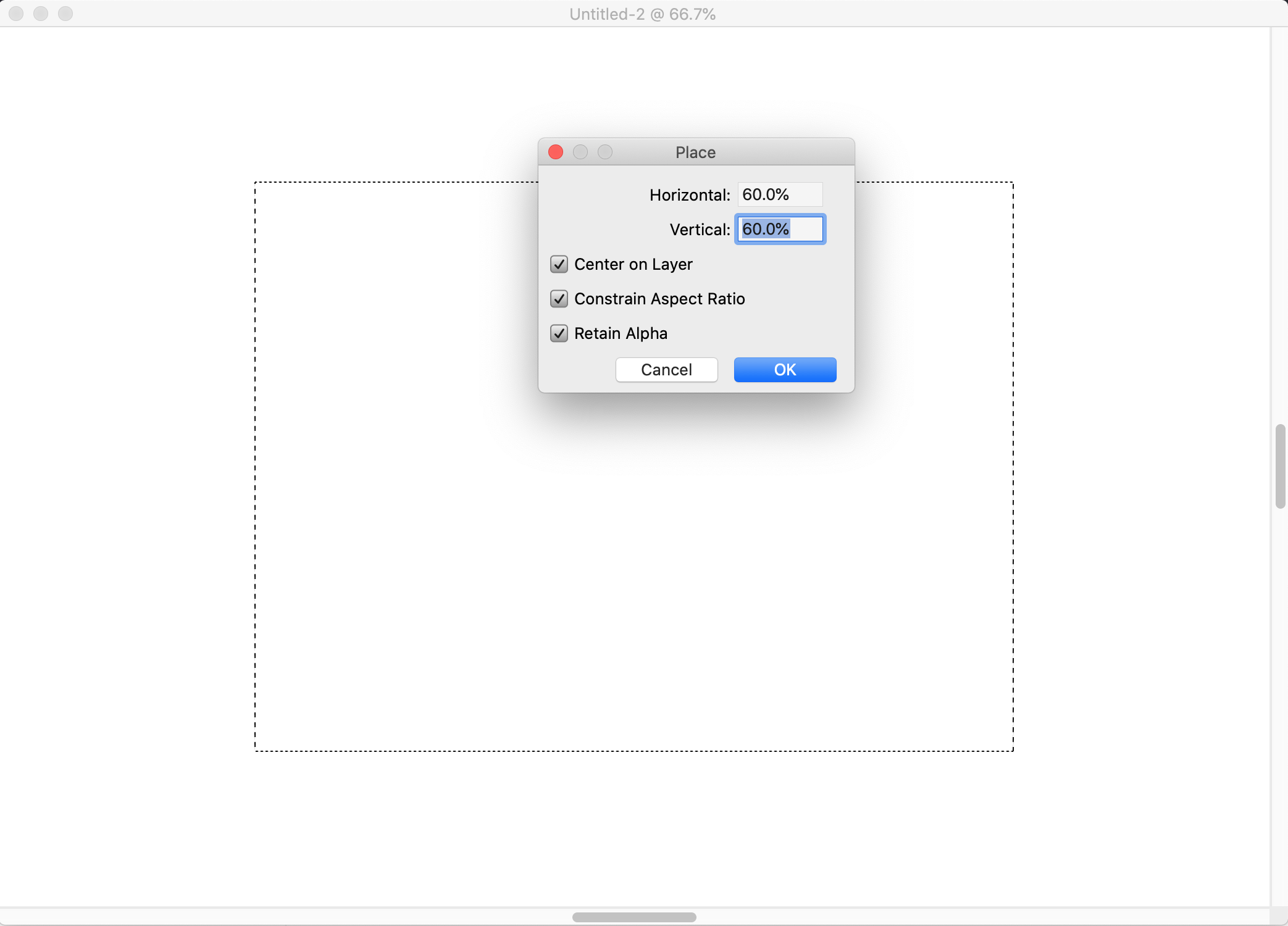
You can scale a file before placing it in a document.
For more information, see Working with reference layers.
To place a file
1
Choose
File
Place.
2
Select an image file, and click
Open.
The
Place dialog box appears.
3
Perform a task from the following table.
|
|
|
Place the image in a specific location in the document window
|
Disable the Center on Layer checkbox, and then click the area in the document window where you want to place the image.
|
Place the image in the center of the document window
|
|
Scale the image before placing
|
In the Scaling area, type a value in both the Horizontal and Vertical boxes.
|
Maintain the image proportions when scaling
|
In the Scaling area, enable the Constrain Aspect Ratio check box.
|
|
|
Enable the Retain Alpha check box. The image mask becomes a layer mask.
|

If the placed image contains a mask and you do not enable the Retain Alpha check box when placing, the image mask is discarded.