Quick links to procedures on this page:
• |
• |
• |
• |
• |
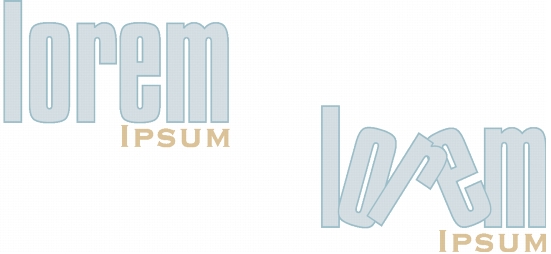
Artistic and paragraph text can be shifted vertically or horizontally, or rotated, to create interesting effects. You can straighten text into its original position, and you can return vertically shifted characters to the baseline. You can also mirror artistic and paragraph text.
If you want to adjust the position of an entire text object that is fitted to a path such as a circle or a freehand line, see To adjust the position of text that is fitted to a path.
Rotated characters
| To shift or rotate a character |  |
1 |
Using the Text tool  , select the character or characters. , select the character or characters.
|
2 |
Click the Character shift arrow in the Character formatting docker, type a value
in one of the following boxes:
|
• |
Angle — A positive number rotates characters counterclockwise, and a negative
number rotates characters clockwise.
|
• |
Horizontal shift — A positive number moves characters to the right, and a
negative number moves characters to the left.
|
• |
Vertical shift — A positive number moves characters up, and a negative number
moves characters down.
|
If the Character formatting docker does not appear in your workspace, click Text  Character formatting. Character formatting. |
 |
You can also use the Shape tool  to shift or rotate characters. Select the
character node or nodes, and then type values in the Horizontal shift box to shift or rotate characters. Select the
character node or nodes, and then type values in the Horizontal shift box  ,
Vertical shift box ,
Vertical shift box  , or Angle of rotation box , or Angle of rotation box  on the property bar. on the property bar.
|
| To straighten a shifted or rotated character | |
1 |
Select the text.
|
2 |
Click Text Straighten text.
|
| To return a vertically shifted character to the baseline | |
1 |
In the toolbox, click the Shape tool .
|
2 |
3 |
Click Text Align to baseline.
|
| To mirror text | |
1 |
Using the Text tool , select the artistic text or the paragraph text frame.
|
2 |
On the property bar, click one of the following buttons:
|
• |
Mirror text horizontally  — flips the text characters from left to right — flips the text characters from left to right
|
• |
Mirror text vertically  — flips the text characters from top to bottom — flips the text characters from top to bottom
|
|
You can also mirror text fitted to a path. For more information, see To mirror
text that is fitted to a path.
|
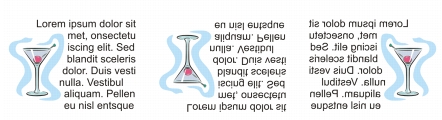
Left to right: Text in original form, mirrored vertically, and mirrored horizontally
| To flip text by dragging diagonally | |
1 |
Using the Text tool , select the artistic text or the paragraph text frame.
|
2 |
Drag a corner selection handle across the text and past the corner handle on the
opposite side.
|

|
Copyright 2010 Corel Corporation. All rights reserved.