Quick links to procedures on this page:
• |
• |
• |
• |
• |
You can change the transparency of an object to reveal image elements that lie beneath it. When you change the transparency of an object, you change the grayscale value of its individual pixels.
Changes to the transparency of an object are permanent. If you want to apply transparency changes separately, so the object is not affected, you can use a clip mask. For more information, see Using clip masks.
You can change the transparency of an entire object, or the transparency of an editable area. Changing the transparency alters the transparency values of all pixels in the object or editable area by an equal amount.
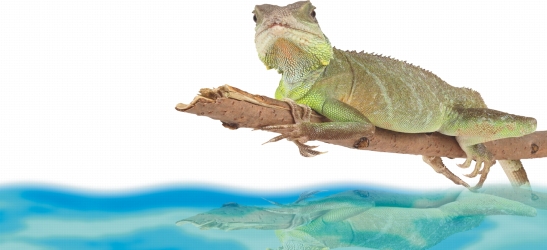
The object has been flipped to create a reflection in water, and transparency has been applied to the reflection.
You can apply a transparency gradient to an object so that the object fades from one transparency value to another. There are several gradient types that determine the pattern of the transparency: flat, linear, elliptical, radial, rectangular, square, conical, bitmap, or textured.
You can customize the gradient by adding and removing nodes, and specifying a transparency value for each node.
You can make all pixels of a certain color or color range transparent in the active object. Removing one or all of the color selection nodes makes the pixels of a certain color opaque again.
You can create interesting effects by blending objects with other objects that are below them in the stacking order, or by blending objects with the background. As you experiment with settings, the transparency effect previews in the image window.
| To change the transparency of an object |  |
1 |
Select an object.
|
2 |
In the Objects docker, type a value in the Opacity box.
|
If the Objects docker is not open, click Window  Dockers Objects. Dockers Objects. |
 |
The Opacity box is not available for black-and-white (1-bit) images.
|
| To change the transparency of part of an object | |
1 |
Select an object.
|
2 |
In the toolbox, click the Object transparency brush tool  . .
|
3 |
On the property bar, open the Nib Shape picker, and click a shape.
|
4 |
Type a value in the Size box.
|
5 |
Type a value in the Transparency box to set the transparency level for the
brushstroke.
|
6 |
Drag across the object.
|
 |
You can quickly choose a square or round brush shape by clicking the Round
nib button  or the Square nib button or the Square nib button  on the property bar. on the property bar.
|
| To apply a transparency gradient to an object | |
1 |
Select an object.
|
2 |
In the toolbox, click the Object transparency tool  . .
|
3 |
On the property bar, choose a gradient from the Fill type list box.
|
4 |
In the image window, drag the nodes to set the gradient arrow.
|
5 |
Click a node, and type a value in the Transparency box on the property bar.
|
6 |
Click the Apply transformation button  . .
|
|
For information about editing fills, see Filling images.
|
Because the bitmap, texture, and flat gradient types affect an entire object, you
cannot add nodes to customize their transparency values.
|
| To make selected colors in an object transparent | |
1 |
Select an object.
|
2 |
In the toolbox, click the Color transparency tool  . .
|
3 |
Type a value in the Tolerance box on the property bar to specify the range of colors
that will become transparent.
|
If you want to blend the surrounding colors with the transparent pixels, type a value in the Smoothing box. Higher values create a smoother transition. |
4 |
Click a color in the image window.
|
| To blend an object | |
1 |
Select an object.
|
2 |
In the Objects docker, click the flyout arrow  and click Object properties. and click Object properties.
|
If the Objects docker is not open, click Window Dockers Objects. |
3 |
In the Object properties dialog box, click the General tab.
|
4 |
Choose the channel you want to blend from the Blend list box.
|
5 |
On the Active object graph and the Composite underlying graph, drag any of
the following nodes:
|
• |
• |
Increasing minimum (bottom left node) — specifies the upper minimum
grayscale value of the pixels in the object
|
• |
Decreasing maximum (top right node) — specifies the lower maximum
grayscale value of the pixels in the object
|
• |
Decreasing minimum (bottom right node) — specifies the lower minimum
grayscale value of the pixels in the object
|
|
You can also
|
|
|---|---|
|
Choose a blending method
|
Click a merge mode in the Merge box.
|
|
Adjust the opacity
|
Drag the Opacity slider.
|
|
The boxes to the right of the Blend list box display the grayscale and
transparency values of the selected object’s pixels.
|
You can specify the grayscale values of pixels on a scale of 0 (black) to 255
(white), and the opacity of pixels on a scale of 0 (transparent) to 100 (opaque).
Pixels in the active object that fall outside the specified range are hidden, so the
pixels of the underlying object are visible.
|

|
Copyright 2010 Corel Corporation. All rights reserved.