Quick links to procedures on this page:
• |
• |
• |
• |
• |
• |
• |
• |
You can choose background, foreground, and fill colors by selecting a color from the color control area, color palettes, color viewers, color harmonies, or color blends and by sampling colors from an image.
For information about applying the colors you choose, see Applying uniform fills, Drawing and painting, and Working with objects.
In the color control area, you can view the selected foreground, background, and fill colors, and you can choose new colors. The foreground color applies to all the paint tools, and to the color of text when it is first typed. The background color applies to the background of the image window, and the fill color swatch indicates the selected fill type and color.
A color palette is a collection of color swatches. In some programs, color palettes are known as “swatch palettes.”
In Corel PHOTO-PAINT, the default color palette is based on the color mode of the image. For example, if you open a CMYK image, a CMYK palette appears in the image window, if you open a paletted image, an RGB palette appears in the image window.
You can choose foreground, background, and fill colors by using the default color palette, which contains 99 colors from the RGB color model.
When you create a new image, the application automatically generates an empty palette, called the Image palette. It helps you keep track of the colors that you use by storing them for future use. For more information, see Using the Image palette.
The color palettes that are found in the Palette libraries cannot be edited directly. Some of them are provided by third-party manufacturers, for example PANTONE, HKS Colors, and TRUMATCH. It may be useful to have on hand a manufacturer’s swatch book, which is a collection of color samples that shows exactly what each color looks like when printed.
Some palettes found in the Palette libraries — PANTONE, HKS Colors, TOYO, DIC, Focoltone, and SpectraMaster — are collections of spot colors. If you create color separations when you print, each spot color requires a separate printing plate, which can significantly affect the cost of the printing job. If you want to use color separations, but would like to avoid using spot colors, you can convert them to process colors when printing. For more information, see Printing color separations.
Custom color palettes can include colors from any color model, including palettes found in the Palette libraries, such as a spot color palette. You can save a custom color palette for future use. For more information about working with custom color palettes, see Creating and editing custom color palettes.
When you want to use a color that already exists in an object or image, you can sample the color to achieve an exact match. By default, you sample a single pixel from the image window.
When you sample a color from a photo, what looks to be a solid-colored area may actually be subtly shaded or dithered. In this case, it is useful to average the colors of pixels in a larger sample area. You can set the sample area to 3 × 3 pixels, or to 5 × 5 pixels for high-resolution images. You can also sample pixels in a selected area.
If you want to sample and use numerous colors from the image window, you can store them on a custom color palette. For more information on custom color palettes, see Creating and editing custom color palettes.
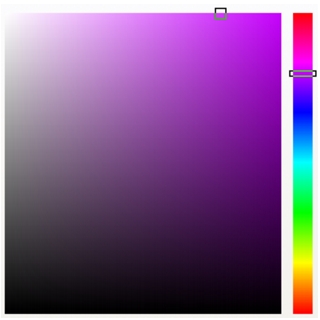
Color viewers provide a representation of a range of colors by using either one-dimensional or three-dimensional shapes. The default color viewer is based on the HSB color model, but you can use this viewer to choose CMYK, CMY, or RGB colors. For information about color models, see Understanding color models.
An example of a color viewer
Color harmonies work by superimposing a shape, such as a rectangle or a triangle, over a color wheel. Each vertical row in the color grid begins with the color located at one of the points on the superimposed shape.
The colors at each corner of the shape are always complementary, contrasting, or harmonious, depending on the shape you choose. The color harmonies let you choose a color model, and they are most useful when you need to choose several colors for a project.
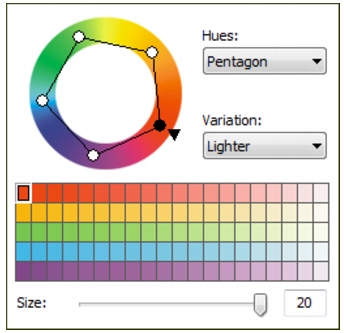
An example of color harmonies
When you choose a color by using color blends, you combine base colors to produce the color you want. The color blender displays a grid of colors that it creates from the four base colors you choose.
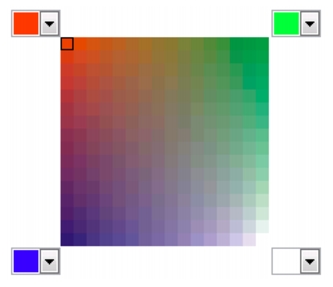
An example of color blends
You can use Web colors when you design documents that will be published to the Web. With Corel PHOTO-PAINT, you can define Web colors by using RGB hexadecimal values (for example, #aa003f).
| To choose a color by using the color control area |  |
1 |
In the color control area of the toolbox, double-click one of the following:
|
• |
Foreground color swatch 
|
• |
Background color swatch
|
2 |
Move the color slider to set the range of colors displayed in the color selection area.
|
3 |
Click in the color selection area to choose a color.
|
 |
You can also choose foreground, background, and fill colors by using the Color
docker. To open the Color docker, click Window  Dockers Color. Dockers Color.
|
| To choose a color by using the default color palette | |
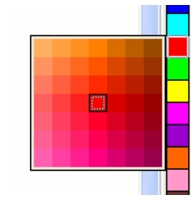
An example of a pop-up color palette
You can display color names by pointing to a swatch.
|
You can also choose foreground, background, and fill colors by using the Color
docker. To open the Color docker, click Window Dockers Color.
|
| To choose a color by using a color palette | |
1 |
In the color control area of the toolbox, double-click one of the following:
|
• |
Foreground color swatch
|
• |
Background color swatch 
|
2 |
Click the Palettes tab.
|
3 |
Choose a color palette from the Palette list box.
|
4 |
Move the color slider to set the range of colors displayed in the color selection area.
|
5 |
Click a color in the color selection area.
|
 |
Each spot color swatch on a color palette is marked with a small white square.
|
You should use the same color model for all colors in an image; the colors will
be consistent, and you will be able to predict the colors of the final output more
accurately. For more information about reproducing colors accurately, see
Using color management.
|
|
You can also access color palettes in the Color docker by clicking the Show
color palettes  button, and choosing a palette from the list box. If the Color
docker is not open, click Window Dockers Color. button, and choosing a palette from the list box. If the Color
docker is not open, click Window Dockers Color.
|
| To sample a color | |
1 |
Click the Eyedropper tool  . .
|
2 |
Click the image to choose a foreground color.
|
The default sample size is 1 pixel. |
|
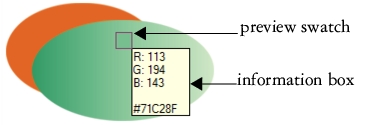
In the image window, a preview swatch is attached to the Eyedropper tool,
along with an information box listing the color model component values.
When you sample an RGB color, the information box also includes the
hexadecimal color value.
|
|
You can also activate the Eyedropper tool by pressing the E key. Click the
Spacebar to return to the previously selected tool.
|
You can also use the Image info docker to view the color model component
values for an image pixel, such as the red, green, and blue components of a pixel
in an RGB image or its hexadecimal color value. If the Image info docker is
not open, click Window Dockers Info.
|
| To choose a color by using a color viewer | |
1 |
In the color control area of the toolbox, double-click one of the following:
|
• |
Foreground color swatch
|
• |
Background color swatch
|
2 |
On the Models page, choose a color model from the Model list box.
|
3 |
Click Options Color viewers, and click a color viewer.
|
4 |
Move the color slider.
|
5 |
Click a color in the color selection area.
|
|
If you choose a color that is outside of the printer gamut,
Corel PHOTO-PAINT allows you to replace it with a similar color that is in
the printer’s gamut. To replace the color, click the Bring color into gamut
swatch, which displays to the left of the New color swatch. For information
about color correction, see Using color management.
|
You should use the same color model for all colors in an image; the colors will
be consistent and you will be able to predict the colors of the final output more
accurately. It is preferable to use the same color model that you are using for
the final output.
|
|
You can also access color models in the Color docker by clicking the Show
color viewers button and choosing a color model from the list box. If the
Color docker is not open, click Window Dockers Color.
|
| To choose a color by using color harmonies | |
1 |
In the color control area of the toolbox, double-click one of the following:
|
• |
Foreground color swatch
|
• |
Background color swatch
|
2 |
Click the Mixers tab.
|
3 |
Click Options Mixers Color harmonies.
|
4 |
Choose a shape from the Hues list box.
|
5 |
Choose an option from the Variation list box.
|
6 |
Drag the black dot on the color wheel.
|
7 |
Click a color swatch on the color palette below the color wheel.
|
|
You can also
|
|
|---|---|
|
Sample a color from an image
|
Click the Eyedropper tool
, and click the image or desktop.
|
|
If you choose a color that is outside of the printer gamut,
Corel PHOTO-PAINT displays the closest in-gamut color. This color is
displayed in the Bring color into gamut swatch, which displays to the left of
the New color swatch. You can either choose this closest in-gamut color or you
can correct the out-of-gamut color by clicking the Bring color into gamut
swatch. For information about color correction, see Using color management.
|
|
You can change the number of swatches in the color grid by dragging the Size
slider.
|
You can choose a fill color by double-clicking the Fill color swatch  in the
color control area. Click the Uniform fill button in the
color control area. Click the Uniform fill button  in the Select fill dialog
box, and click Edit. in the Select fill dialog
box, and click Edit.
|
You can swap the Old color (the current foreground or background color) and
the New color (which has been chosen in the color selection area) by clicking
Options Swap colors.
|
| To choose a color by using color blends | |
1 |
In the color control area of the toolbox, double-click one of the following:
|
• |
Foreground color swatch
|
• |
Background color swatch
|
2 |
Click the Mixers tab.
|
3 |
Click Options Mixers Color blend.
|
4 |
Open each color picker, and click a color.
|
5 |
Click a color in the color selection area.
|
|
You can also
|
|
|---|---|
|
Sample a color from the image
|
Click the Eyedropper tool
, and click the image or desktop.
|
|
Only colors that are on the default color palette can be blended. To blend other
colors, you must change the default color palette.
|
| To choose a Web color | |
1 |
Click Window Dockers Color.
|
2 |
In the Color docker, click the Fill, Background, or Foreground color swatch and
choose Default RGB palette from the list.
|
3 |
Type or paste a value in the Hex value box, and press Tab.
|
Whether you use a three-digit (#fff) or six-digit format (#ffffff), the final value is presented in the six-digit format. |
|
You can specify hexadecimal color values only when working with RGB colors.
|
If you type an invalid hexadecimal value, the color does not change. The last
valid hexadecimal value is displayed when you press Tab.
|
You can view hexadecimal color values on the status bar.
|
You can also choose Web colors from the Foreground color, Background
color, or Uniform fill dialog boxes. These dialog boxes also let you view and
copy the hexadecimal equivalents of non-RGB colors.
|

|
Copyright 2010 Corel Corporation. All rights reserved.
 . The foreground and fill colors return to black, and the background color returns to white.
 in the upper-right corner of the color control area.
 on the property bar.
 on the property bar.
 on the property bar and drag in the image window to select an area.