Add and select text
You can add text to enhance images. You can specify the text font, size, and alignment, as well as the character spacing and line spacing.
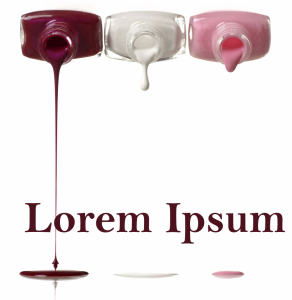
Text was created with the Text tool.
Text is created as an object by default; therefore, you can move, size, scale, rotate, flip, skew, distort, and apply perspective; however, you will lose distortion or perspective effects if you add, remove, or edit text characters. For more information about working with objects, see Work with objects. Text can also be rendered as an editable area of a mask. For more information about creating editable areas, see Define editable areas.
You can also change the text color by filling or painting. In addition, you can fill text with patterns and textures.
You can also kern, shift, or rotate text. For more information see, Kern, shift, and rotate text.
To add text


You can render the text as an editable area by selecting the text with the Text tool  and clicking the Create mask button
  on the property bar. This produces a text-shaped editable area to which you can apply effects.
To select text for modifying