This section provides troubleshooting tips and offers answers to frequently asked questions about workspaces and user files. If your question is not included in the following list, visit the Corel Knowledge Base.
| • | I was using Corel Painter without any problems for a while, and now it no longer works as expected. What do I do? |
| • | I know that restoring Corel Painter to its default settings may help with unexpected performance problems, but I don’t want to lose my custom brushes and palettes. How do I keep my custom items? |
| • | What’s the difference between user files and a workspace? |
| • | What’s the difference between a layout and a workspace? |
| • | Where do I find my previously purchased brushes after reinstalling Corel Painter or installing it on another computer? |
| • | I have read that renaming my application data folder (Windows) or application library folder (macOS) may help improve the performance of Corel Painter? How do I rename this folder? |
| • | Corel Painter stops responding on startup (macOS)? What do I do? |
| • | How do I repair my Corel Painter installation (Windows)? |
| • | How do I uninstall Corel Painter properly (Windows)? |
| • | My tablet doesn’t work as expected with Corel Painter. What do I do? |
| • | I am trying to install/reinstall Corel Painter but I get a warning that my serial number is invalid. What do I do? |
| We recommend that you follow these troubleshooting tips in the order they are listed. |
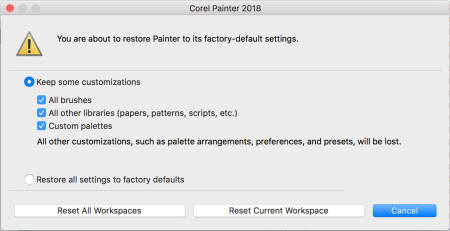
| • | The easiest and most effective action is to start Corel Painter by holding down Shift. This action will restore Corel Painter to its default settings and may solve unexpected problems. For more information, see Restoring the default Corel Painter settings. |
| • | If restoring Corel Painter to its default settings did not improve performance, the problem may be some custom items such as brushes, papers, or custom palettes that you created earlier and decided to keep. Start Corel Painter while holding down Shift again, and try disabling one or more items under the Keep some customizations option. |
| When you restore the application to its default settings by holding down Shift and starting it, choose the Keep some customizations option in the dialog box that comes up. You can choose to keep your custom brushes, custom palettes, and customized libraries (papers, patterns, scripts, textures, and more). |
What’s the difference between user files and a workspace?
What’s the difference between a layout and a workspace?
A layout (also known as "palette arrangement") displays, hides, and positions workspace elements such as palettes and panels to suit a specific workflow. For example, the New to Painter layout displays only the most essential controls together with the Hints panel to help you get started quickly with Corel Painter. You can switch layouts while working in the same workspace by clicking Window  Layout. Layout. |
| A layout arranges the elements of a workspace in a specific way; a workspace includes specific content such as brushes, textures, papers, and more. |
| You can arrange palettes and panels and save the arrangement as a custom layout. For more information, see To save an arrangement of palettes as a workspace layout. When you restore Corel Painter to its default settings, you can choose to keep custom brushes, papers, textures, and other assets, but all your custom layouts will be lost. |
| Click Help menu Restore Purchases, and follow the instructions to download and install your previously purchased items. For more detailed information, see To restore your purchases. |
| (Windows) Press the Windows key + R, type %appdata% in the Run dialog box, and press Enter. Next, browse to the Corel/Painter [XX] folder, where XX is the version number of the product, and rename the folder to Painter XX_old. Start Corel Painter. |
| (macOS) Start Finder. Choose Go Go to Folder, type ~/library in the Go to folder box, and click Go. Next, browse to the Corel/Painter [XX] folder, where XX is the version number of the product, and rename the folder to Painter XX_old. Start Corel Painter. |
Corel Painter stops responding on startup (macOS)? What do I do?
| For troubleshooting tips, check out this article on the Corel Knowledge Base. |
| https://support.corel.com/hc/en-us/articles/222313907-Painter-crashes-right-on-start-up |
How do I repair my Corel Painter installation (Windows)?
| If you suspect that your installation of Corel Painter is corrupt, you may need to repair it. To do this, close all applications, and click Uninstall a program on the Windows Control Panel. Double-click the product name on the Uninstall or change a program page. In the Installation wizard, enable the Repair option, and follow the instructions. |
How do I uninstall Corel Painter properly (Windows)?
| Always use the Corel Painter Installation wizard to uninstall Corel Painter. Close all applications, and click Uninstall a program on the Windows Control Panel. Double-click the product name on the Uninstall or change a program page. In the Installation wizard, enable the Remove option and the Remove User Files check box, and follow the instructions. |
| The Corel Painter Thumbnail Previewer lets you view the contents of Corel Painter (RIFF) files in Windows Explorer by generating thumbnail images. This utility must be uninstalled separately. To do so, double-click Corel Painter Thumbnail Previewer on the Uninstall or change a program page. |
My tablet doesn’t work as expected with Corel Painter. What do I do?
| Unplug the tablet, and try to connect it to your computer by using another USB port. |
| Make sure you have pasted or typed the correct serial number, and that you are using a serial number provided by Corel. |
Copyright 2017 Corel Corporation. All rights reserved.
