| • | To display the Gesture Tips panel |
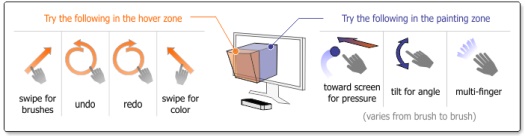
You need to use a series of air gestures to perform actions in Painter Freestyle. The three basic air gestures are: hovering, swiping, and stroking. There are specific air gestures to perform tasks, such as resizing a brush or undoing brushstrokes. Painter Freestyle also includes a Gesture Tips panel that you can display to help you use gestures.
The Gesture Tips panel is a quick reference guide for using gestures in Painter Freestyle.
If you find it difficult to perform some tasks using air gestures, you can disable the gestures by choosing Window  Advanced, and disabling the Enable Leap Input check box.
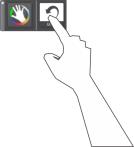
Hovering allows you to make selections onscreen.
You can use a swiping air gesture in the hover zone to quickly open the Color and Brushes and Papers panels. You can open the Color panel by swiping a finger diagonally from the lower-right corner toward the upper-left corner of the hover zone. To open the Brushes and Papers panel, swipe a finger diagonally from the lower-left corner toward the upper-right corner of the hover zone.
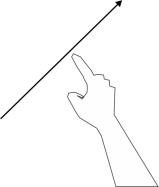
Swiping allows you to open the Color and Brushes and Papers panels.
To apply strokes of color, move a single finger, multiple fingers, or a painting tool, across the painting space. Try varying the speed and direction of your strokes to produce different effects. For example, you can apply broad sweeping movements, short quick swipes, or circular motions. For more information, see Applying brushstrokes by using air gestures.
You can also vary the pressure of the stroke by adjusting the depth of the stroke within the painting space. For example, to apply more pressure, move your hand toward the monitor, or toward the edge of the painting space that is farthest away from you. For more information, see Adjusting the painting space.
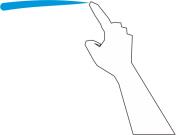
Stroking air gestures allow you to apply color to the page.
You can also use air gestures to do the following:
| • | Resize brushes, see "Choosing and resizing brushes" on page 13 |
| • | Choose colors, see Choosing colors. |
| To display the Gesture Tips panel |

|
| • | Choose Window Gesture Tips. |
Copyright 2013 Corel Corporation. All rights reserved.
